Instafill.ai has always been about saving time. From auto-filling complex forms to extracting structured data from uploaded documents, our goal has been to make form-filling as fast and accurate as possible.
Now we’re adding something that makes the accuracy part even better: field flagging.
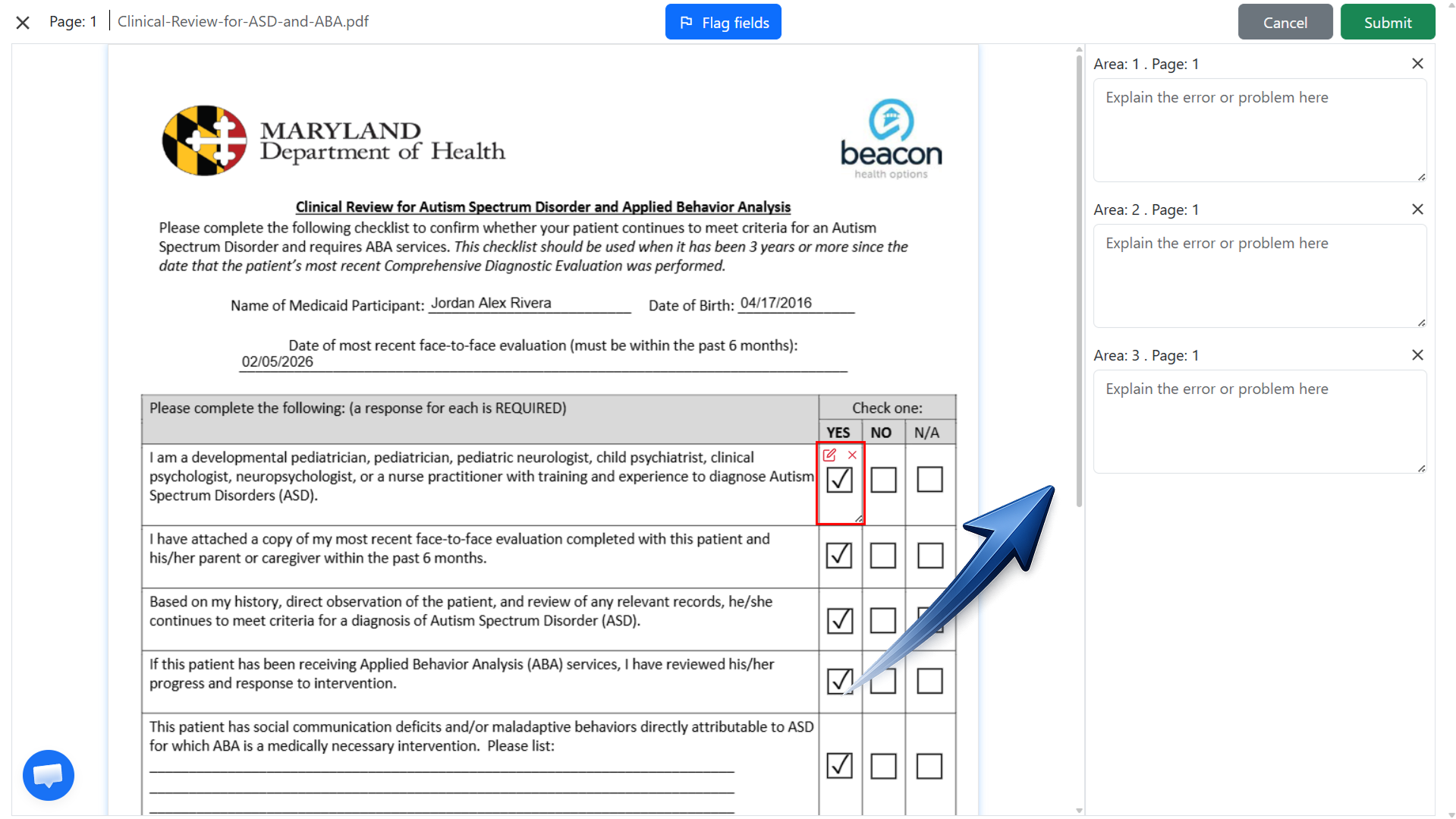
If you catch an error, you can now flag the exact field that’s wrong, add a note about why it’s wrong, and submit it directly to our team. We’ll fix it – and improve the AI, so it doesn’t make the same mistake again.
Why this matters
- Fast correction: You no longer need to send vague emails explaining what went wrong. Highlight the exact field in seconds and we’ll know exactly what needs attention.
- Accuracy improves over time: Each flagged issue helps train the AI. So the next time we encounter the same form type, the system avoids making the same mistake.
- Saves money and time: Organizations don’t need to re-check entire 60-page forms line by line. They only flag the small parts that need adjustment, making the workflow much more efficient.
- More efficient workflow: No need to re-check entire multi-page forms. Only the flagged parts need attention, making the workflow much more efficient for everyone.
How the feature works
Requests can only be created from filled forms. Here’s the step-by-step process:
1. Open your filled form. After your form is filled out, click the Flag incorrect fields button at the bottom-right of the screen. This will open the form in problem reporting mode.

2. Highlight the wrong field(s). Scroll to the area with the issue. In the top toolbar, click the Flag fields button. A rectangle will appear – place it over the field with the problem.
- You can also select a group of fields if needed.
- The rectangle can be resized or moved for accuracy.
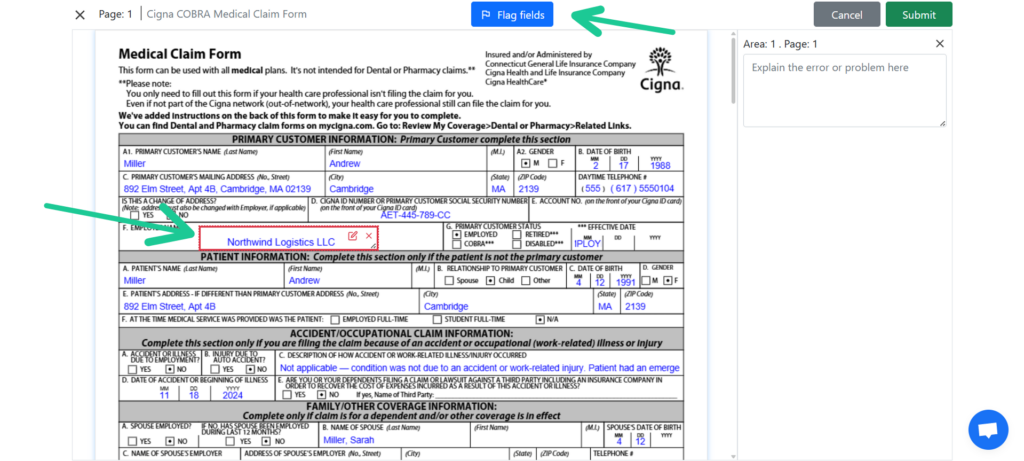
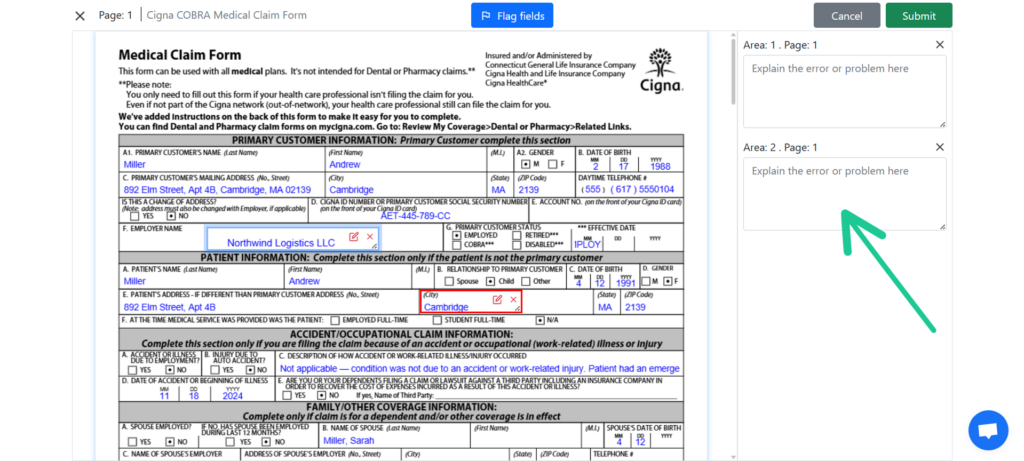
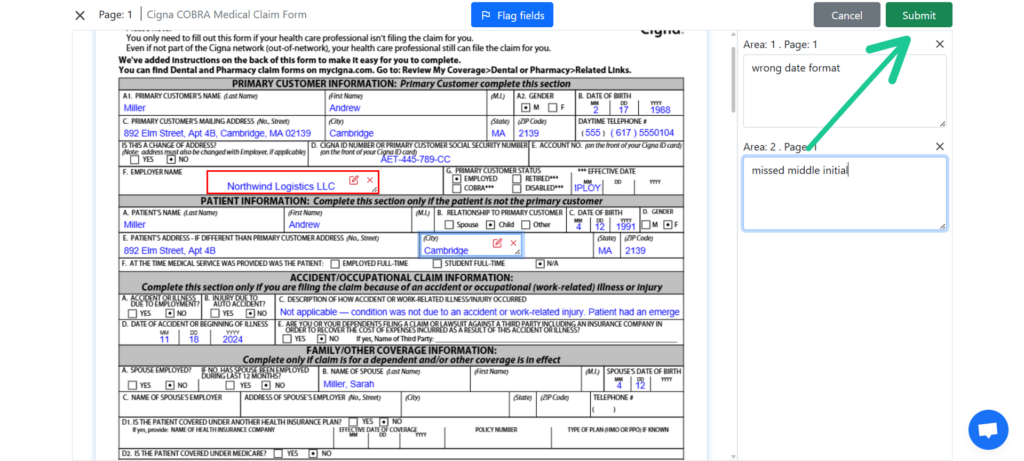
3. Add comments. For each highlighted area, a text box will automatically appear on the right side of the screen. Type your comment into the box (for example: “wrong date format” or “missed middle initial”).
- You can create multiple areas, and each one will have its own text box.
- Every text box must be filled before you can submit the request.
4. Submit your feedback. When finished, click the Submit button on the right side of the top toolbar.
5. We’ve got it from here. Once submitted, your flagged form is securely shared with our team. We receive an annotated copy with your highlights and comments, so we can investigate and fix the issue quickly.
6. Track your request in real-time. Once submitted, your flagged request appears on your Improvement requests page.
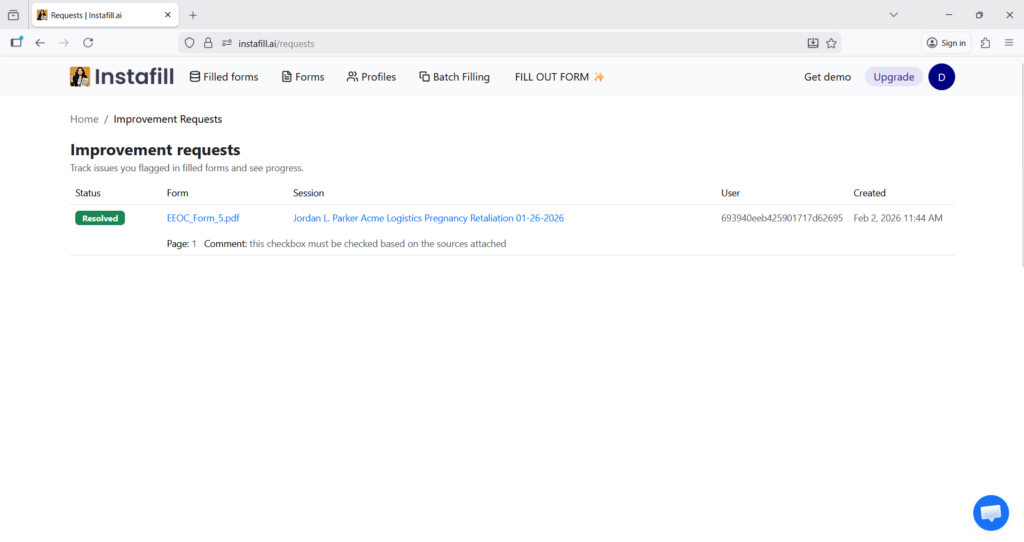
On this page, you can see:
- Status: Open, In Progress, or Resolved
- Form name: Which form does the issue relate to
- Session: The specific filling session
- Page and comment: Which page did you flag and what note you added
- Created date: When you submitted the request
Each request shows its current status with a clear visual indicator:
- Open (cyan badge): We’ve received your request and it’s queued for review
- In Progress (yellow badge): Our team is actively working on resolving the issue
- Resolved (green badge): The issue has been fixed
This gives you complete visibility into how your feedback is being handled, and lets you know when improvements have been implemented.
For a quick demo of the feature in action, watch our walkthrough video:
What happens after you submit?
When you submit a flagged request:
- Secure copy created: A temporary, encrypted copy of your filled form (with highlights and comments) is created in our admin workspace. Your original form in your workspace remains completely unchanged and inaccessible to our team.
- Review: Authorized team members open that secure copy, see exactly what you flagged, and investigate the cause. All access is logged for transparency.
- Deletion: After resolution, the flagged copy is automatically deleted. If needed, you can also request immediate deletion at any time by contacting [email protected].
Privacy and Security
We know privacy is one of the biggest concerns when sharing documents. That’s why we designed this feature to give you full control over what’s shared and when.
- You control what’s shared: We never access your files unless you actively choose to submit a flagged request.
- Encrypted throughout: Your data is encrypted during transmission and while stored, so it’s never kept in plain text.
- Limited access: Only authorized team members can review flagged requests. Every access is logged and auditable.
- Dedicated workspace: The flagged copy is created as a temporary, read-only file in a secure admin workspace. Your original form in your account remains untouched.
- Automatic deletion: The copy is deleted automatically once resolved. You can also request immediate deletion at any time.
- No third-party sharing: Flagged data is never shared with third parties.
- Revocable access: You can revoke access or request deletion at any time by contacting [email protected].
These safeguards ensure that feedback is both useful for improving accuracy and safe for you to share.
Continuous improvement
Flag incorrect fields is more than just a tool for fixing mistakes — it creates a feedback loop that improves accuracy over time:
You flag an issue → We review and fix it → Accuracy improves → Fewer flags next time.
Each flagged report not only corrects a single field but also prevents similar mistakes in the future for that form type. The more feedback the system receives, the closer we get to near-perfect accuracy.
What’s next for this feature
Voice comments (coming soon): We’re working on adding the ability to leave voice comments in addition to typing. Sometimes it’s just faster to explain an issue by speaking rather than writing it out. This will make the reporting process even more convenient.
Getting started
Flag incorrect fields is designed to give you complete control over when you share forms with us while making the reporting process fast, clear, and secure. It’s available for all Instafill.ai users. There’s nothing to install, configure, or learn beyond the simple process described above. You highlight the field, leave a note, choose to submit it, and get notified once it’s resolved. This feedback helps us improve Instafill.ai over time, so forms get filled more accurately with each use.
If you notice something off in your next filled form, try the feature – it’s a secure way to share exactly what we need to fix issues quickly, while keeping you in control of your data.
"Flag incorrect fields" works only with fillable forms. If your form is flat and has no editable fields, you can automatically convert it to a fillable pdf form using this free ai tool.