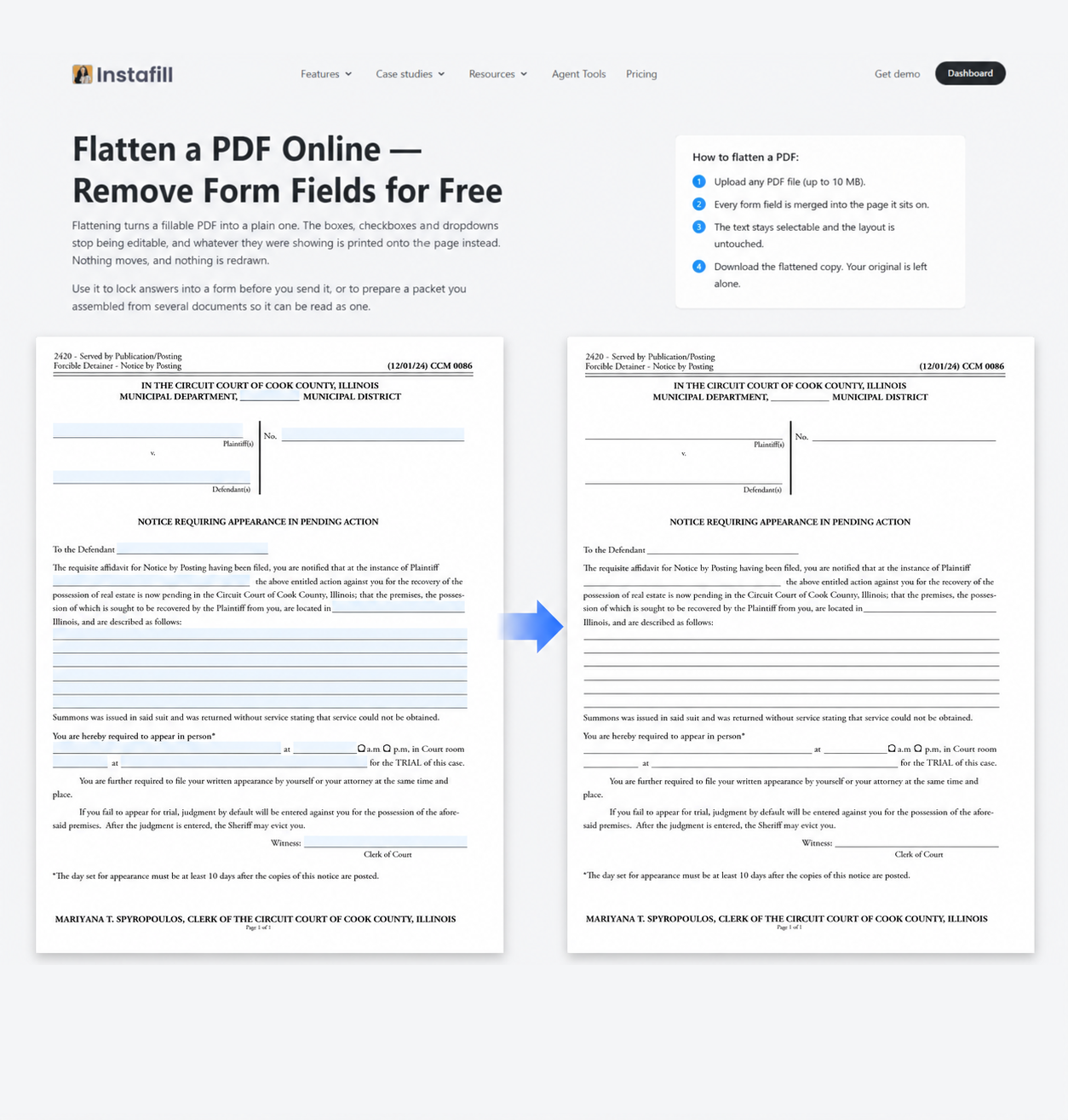
Many business workflows involve more than one form. Court filings, healthcare credentialing, and mortgage closings are common examples, where several related documents may be handled together as part of the same case, application, or transaction.
When several forms are combined into one PDF, the file can contain a mix: some pages already have interactive fields you can type into, while other pages are completely flat.
If you want to keep the packet together and create fillable fields across the complete document, flatten the whole PDF first, then upload the flattened copy to Instafill.ai.
Use it to prepare a packet you assembled from several documents so it can be read as one.
That is the key idea behind this workflow: make the packet consistent first, then let Instafill.ai analyze the complete document.
What “flat” and “fillable” mean in a PDF
A fillable PDF already contains interactive form fields such as text boxes, checkboxes, radio buttons, or dropdowns. You can click a field and enter information.
A flat PDF can look exactly like a form, but its blank lines, boxes, and labels are part of the page itself. There are no interactive fields to click or type into.
A mixed PDF contains both. One form in the packet may already be fillable, while another page or form in the same file is flat.
Why a mixed PDF needs a different starting point
Flat PDFs are already a normal part of the Instafill.ai workflow. More than half of our customers work with them, and Instafill.ai can convert a fully flat document into a fillable form automatically.
When you upload a flat document in the Instafill.ai Forms dashboard, Instafill.ai detects it automatically and starts the conversion. The platform analyzes the document layout, creates fields, and gives you the result to review.
A mixed PDF starts differently. If the file already contains interactive fields, Instafill.ai can recognize it as a fillable document. That means the normal flat-to-fillable conversion may not run across the remaining flat pages.
Flattening the complete PDF first makes the whole packet consistent. The existing fields are no longer interactive, and the packet can be uploaded as one flat document so Instafill.ai can examine every page for fields.
You do not need to split the packet into separate files just because some pages started out fillable and others did not.
One thing to check before you flatten
A page can sometimes look flat even when it already contains fields. If a blank line or box has no visible border, click it before you flatten the file. Some PDF fields are simply hard to see until they are selected.
If the page already has the fields you need, you may not need to flatten it. This quick check helps you avoid removing useful fields by mistake.
Watch the complete workflow
This video shows the full process on a real example of a PDF packet that contains both fillable and flat forms.
Mixed PDF → Flatten the complete PDF → Upload to Instafill.ai → Review fields across the full document
How to process a mixed PDF in Instafill.ai
Step 1: Flatten the complete PDF
Keep the packet together. Open the free Flatten PDF tool and upload the complete file instead of separating it into smaller PDFs.
The free Flatten PDF tool merges each form field into the page it sits on. The visible content stays in place, the page count does not change, and text remains searchable and selectable. Nothing is turned into a page image.
If a field is already displaying a value, that value stays visible on the page, but the field itself is no longer editable.
Free to use: no signup, no watermark, and no limit on the number of PDFs you can flatten. Files can be up to 10 MB each. Uploaded PDFs are processed in memory and immediately discarded.
Step 2: Download the flattened copy
Download the new PDF after flattening is complete. You now have one document in which all pages start from the same flat state.
This is the copy you will upload to Instafill.ai.
Step 3: Upload the flattened PDF to Instafill.ai
Upload the flattened copy in your Instafill.ai Forms dashboard.
For a flat document, Instafill.ai starts the conversion automatically. It analyzes the layout, detects form-like areas such as text fields and checkboxes, and creates interactive fields for review.
Step 4: Review the detected fields
When the conversion is complete, review the form in Instafill.ai. You can move, rename, add, or remove fields before you finalize the template.
Already uploaded the original mixed PDF? Remove the earlier version from your Instafill.ai workspace before uploading the flattened copy. Instafill.ai may recognize a document it has already processed and reuse the existing form setup instead of analyzing the flattened copy as a new document.
When should you use this workflow?
You do not need to flatten every PDF before uploading it to Instafill.ai. A simple rule is:
- If the entire PDF is flat: upload it directly to Instafill.ai. The flat-to-fillable conversion can start automatically.
- If the entire PDF is already fillable: upload it normally and keep the existing fields.
- If one PDF contains both fillable and flat forms and you want fields across the complete packet: flatten the complete PDF first, then upload the flattened copy.
Other reasons to flatten a PDF
Preparing an assembled packet is one reason to flatten a PDF. There are two other common cases where it is useful.
Lock completed answers before sending a form
If a form is complete, flattening locks the displayed answers into the page so they can no longer be changed by opening the file and typing over them.
Remove existing interactive fields
If you need a clean flat copy, flattening removes the existing form fields while keeping the document itself intact.
Keep the document looking consistent across PDF viewers
PDF viewers do not always render interactive fields the same way. Flattening puts the displayed field content onto the page, so the final document is less dependent on the viewer used to open it.
What if the PDF is already completely flat?
You do not need to flatten it again. Flattening removes fields; it does not add them. If the PDF is already flat and you need fillable fields, upload it directly to Instafill.ai and let the flat-to-fillable conversion create them automatically.
Frequently asked questions
What is the difference between a flat PDF and a fillable PDF?
A fillable PDF contains interactive fields that you can click and complete. A flat PDF contains the page content but no interactive form fields, even if it visually looks like a form.
Does flattening a PDF turn it into an image?
No. With the free Flatten PDF tool used in this guide, the PDF is not rasterized into page images. The page count stays the same, and text remains searchable and selectable.
Will flattening change the visible document?
With the free Flatten PDF tool used here, the visible document stays the same while the interactive fields are removed. Values already shown in those fields become part of the flattened page.
Is Flatten PDF free?
Yes. The Instafill.ai Flatten PDF tool is free to use, with no signup and no watermark.
Can I unflatten a PDF later?
Not literally. Flattening removes the interactive fields rather than hiding them. If you later need fillable fields again, Instafill.ai can detect the blank areas and build new fields with its flat-to-fillable conversion.
Can I upload the flattened PDF directly to Instafill.ai?
Yes. Upload the flattened copy through the Instafill.ai Forms dashboard. The platform can then run its normal flat-to-fillable conversion and give you the detected fields to review.
Keep the packet together
If several related forms need to stay together, flatten the complete packet first. You can then upload it as one document and let Instafill.ai create fields across the pages that need them.