If you regularly fill out the same PDF form, adding the same signature to every completed document creates unnecessary manual work.
Instafill.ai now lets you add a reusable signature directly to a PDF form template. Place it once, and Instafill.ai can include it in future filled and downloaded PDFs generated from that form while the signature remains configured. You can later move it, resize it, replace it, or remove it without permanently changing the original PDF.
This feature is useful for teams that repeatedly complete authorization forms, bids, government documents, real estate forms, healthcare paperwork, applications, and other standardized PDFs.
What is a reusable signature for a PDF form template?
A reusable signature is a signature saved in a specific position on a PDF form template. After it is configured, Instafill.ai can include it when generating new filled documents from that template, so you do not need to draw, upload, and position the same signature every time.
Instafill.ai keeps the original PDF form unchanged. Each signature is stored separately with its page, position, size, and signature image. For viewing and downloading, Instafill.ai generates a separate PDF version with the saved signatures applied. This makes it possible to:
- Move a saved signature to another position.
- Resize it after it has been saved.
- Replace it with a different signature image.
- Remove one signature without deleting the others.
- Add several signatures to the same page or to different pages.
- Keep signature graphics separate while the AI analyzes and fills the form.
How to add a reusable signature to a PDF form template
1. Open the form
Log in to Instafill.ai and open the Forms section: https://instafill.ai/forms. Select the PDF form to which you want to add a reusable signature.
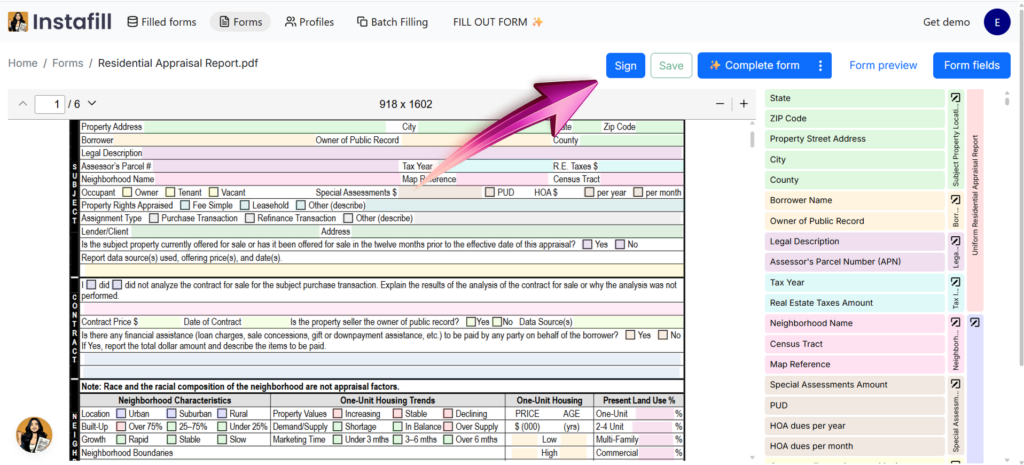
The form opens in the Instafill.ai PDF viewer. At the top of the page, click Sign.
2. Draw or upload the signature
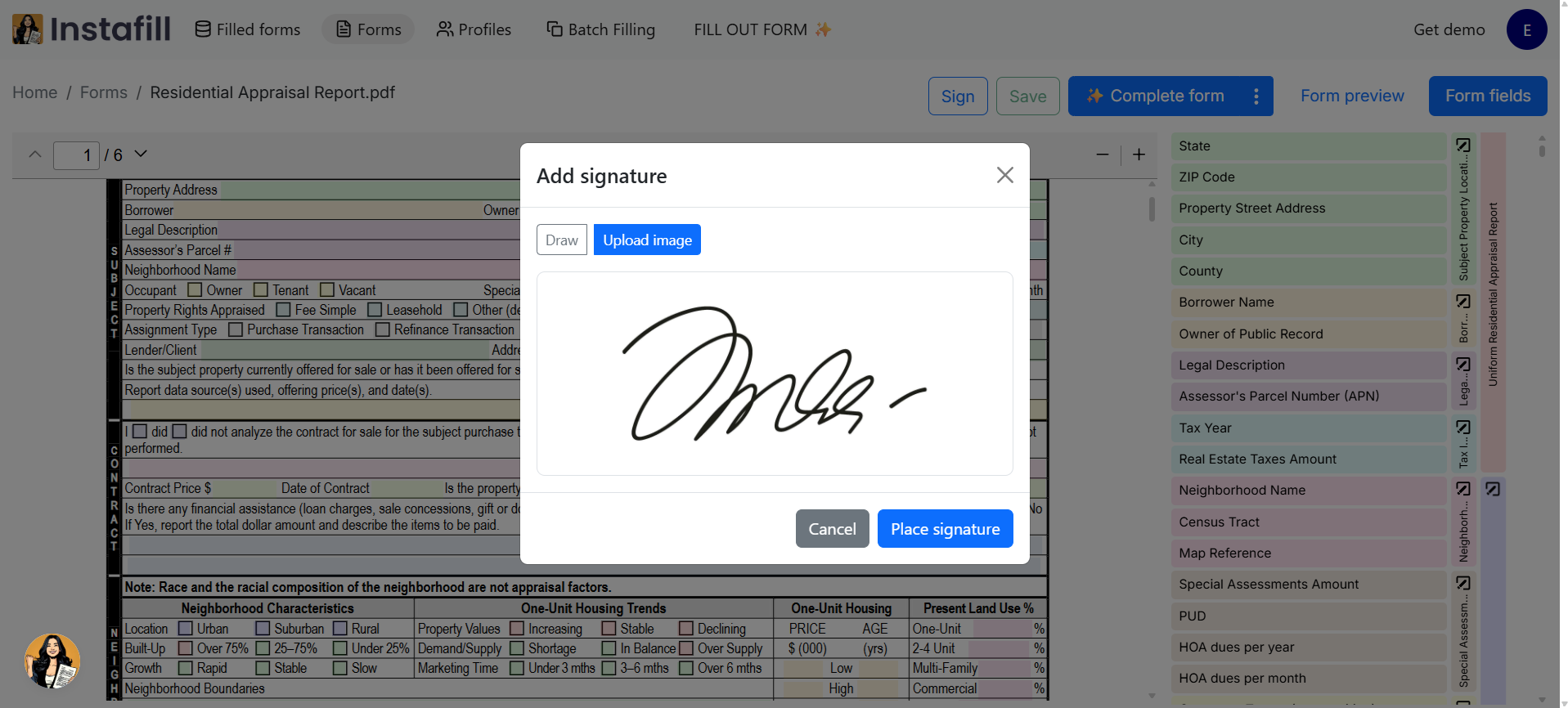
The Add signature window gives you two options:
- Draw: Create the signature using your mouse or touchscreen.
- Upload image: Upload an image of your signature.
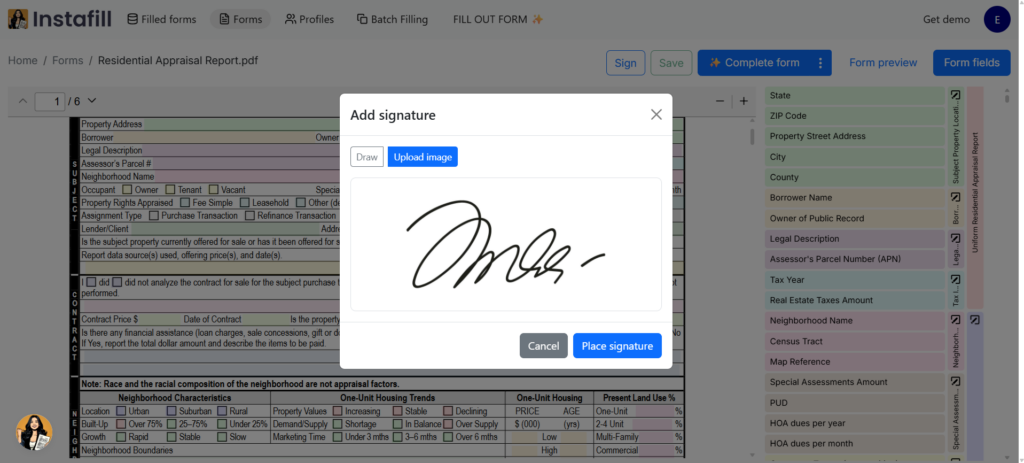
When drawing, use Clear to start again. For uploaded images, use a clean, tightly cropped file with minimal empty space around the signature.
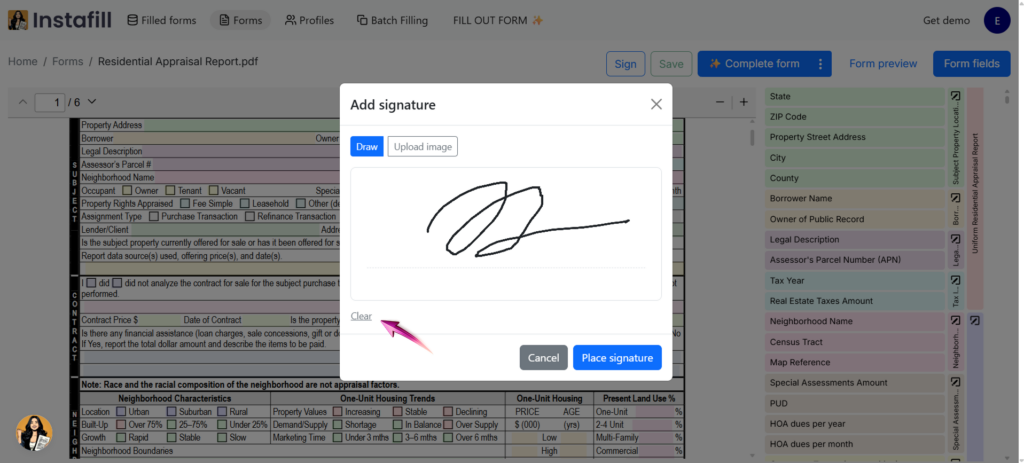
When the signature is ready, click Place signature.
3. Select the placement area
Navigate to the page where the signature should appear and create a box over the correct signature field. Instafill.ai places the signature inside the selected area while preserving its proportions.
Before confirming the placement, you can:
- Drag the box to move the signature.
- Drag a corner to change its size.
- Use the arrow keys for precise movement.
- Use Shift + arrow keys to resize the signature with a keyboard.
- Click Redo box to select the placement area again.
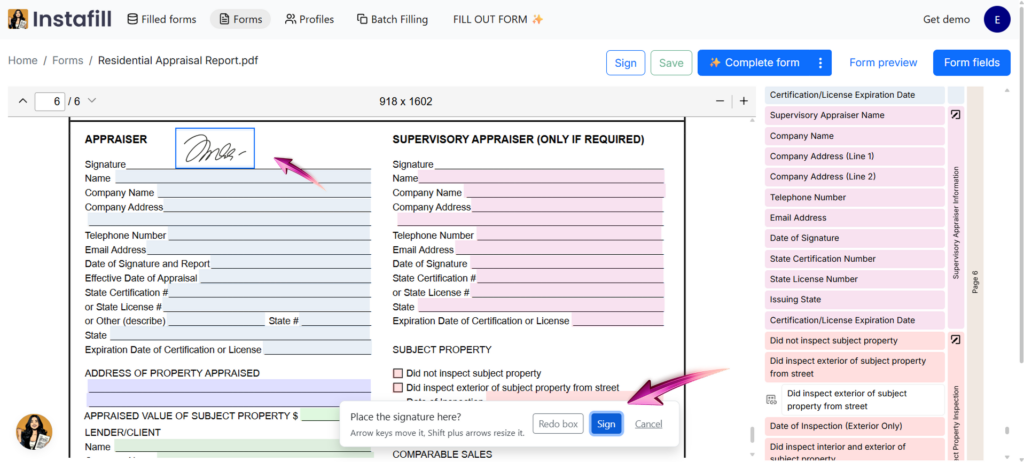
Click Sign to confirm the placement and wait for the Signature added confirmation.
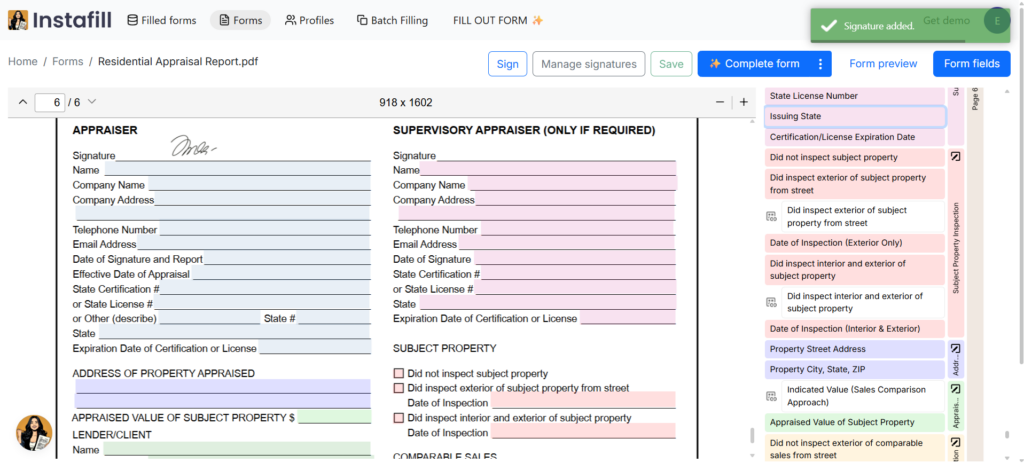
The signature is now saved for that form template and will appear in future filled and downloaded PDFs generated from it while the signature remains configured.
How to manage saved signatures
Once a template has at least one signature, a Manage signatures button appears in the toolbar next to Sign.
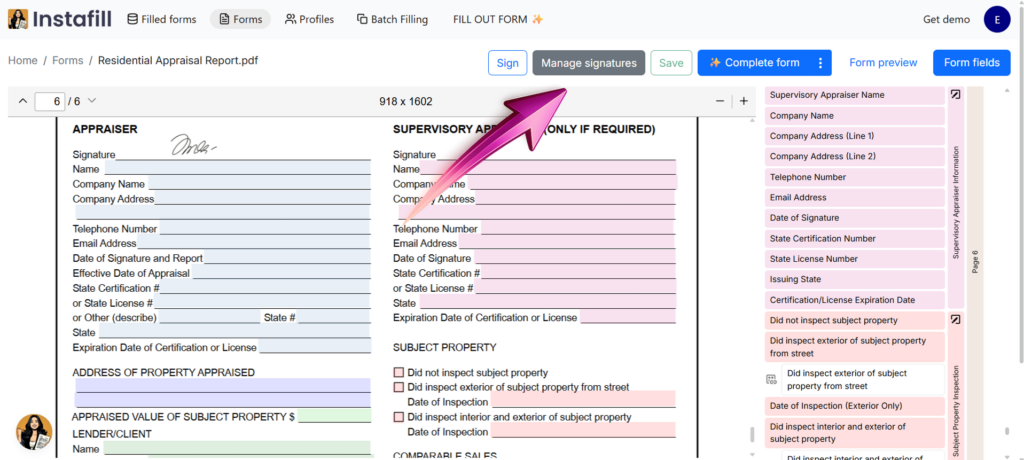
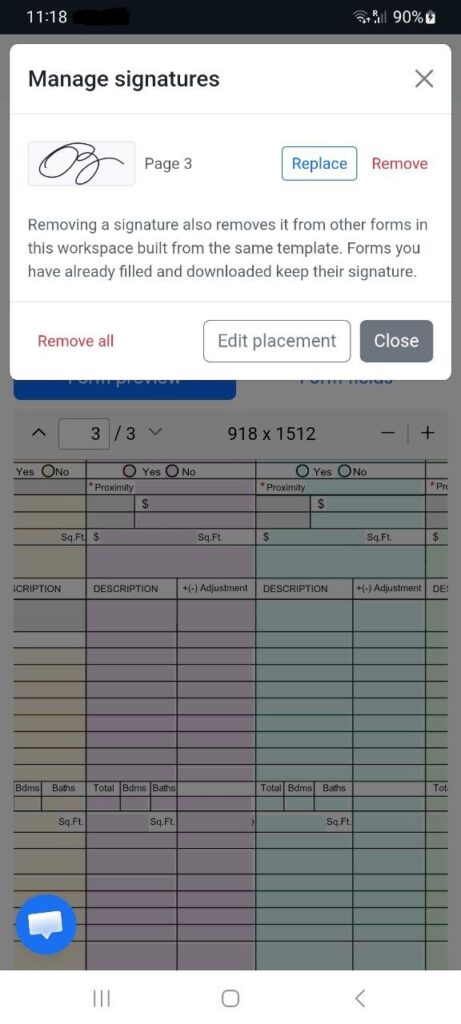
It opens a list of every saved signature on the form template. Each item shows a preview and the page on which the signature appears.
For each signature in the list:
- Replace a signature. Click Replace next to the signature you want to update. Draw a new signature or upload another signature image, then place it on the form. The existing signature remains unchanged until the replacement has been successfully created and placed. Canceling the operation leaves the existing signature in place.
- Remove one signature. Click Remove next to the signature you want to delete and confirm the action. Only the selected signature is removed. Other saved signatures remain in place.
- Edit the placement. Select the signature you want to adjust and click Edit placement. Drag the signature to move it or drag a corner to resize it. For smaller adjustments, use the arrow keys to move it and Shift + arrow keys to resize it. Click Done to keep your changes or Cancel to discard them.
- Remove all signatures. Click Remove all and confirm the action to clear every saved signature from the form template.
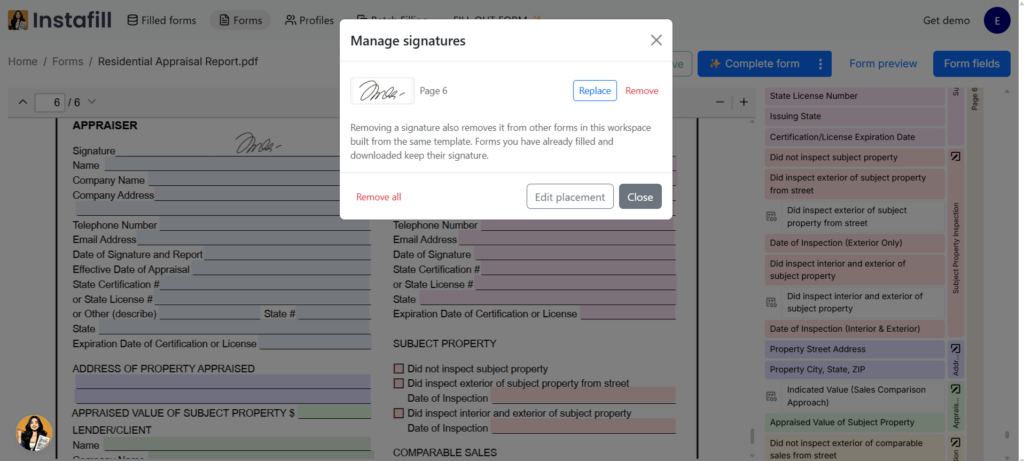
Important: Removing a signature also removes it from other forms in this workspace built from the same template. Forms you have already filled and downloaded keep their signature.
Use reusable signatures on mobile: You can add, place, resize, replace, and remove reusable signatures directly from a mobile device.
Adding multiple signatures
A form template can contain multiple reusable signatures. Add each signature separately with the Sign button.
For example, you can add:
- Two signatures on the same page.
- One signature on the first page and another on the final page.
- Different signatures for separate signature fields.
Every saved item appears separately in Manage signatures, together with its page number. This lets you replace or remove one item without affecting the others.
How reusable signatures stay separate from AI form processing
Instafill.ai analyzes and fills the clean original PDF. Saved signature images are stored separately and applied only to the PDF version shown to the user and made available for download.
This keeps the signature graphic separate from the form content used during AI processing.
Does a reusable signature affect my other forms?
Adding a reusable signature does not add it to the public base template or expose it to unrelated users on Instafill.ai.
A saved signature belongs to the form template you added it to, not to a single document. If you duplicate that template to create other forms in your workspace – for different projects or clients, for example – those duplicates share the same signature, and removing it removes it from all of them at once. A form you built by uploading a separate PDF is not affected. Forms that have already been filled out and downloaded retain their existing signatures.
Best practices for reusable signatures
- Confirm that you are on the correct page before placing the signature.
- Use Manage signatures instead of placing a second copy over an existing signature.
- Review the first generated PDF after adding, replacing, or repositioning a signature.
- Use a tightly cropped signature image with minimal empty space.
- If the underlying PDF is regenerated, converted, or structurally updated, review the form afterward to confirm that the signature is still positioned correctly.
Frequently asked questions
Can I move a signature after saving it?
Yes. Open Manage signatures, select the signature, click Edit placement, and move or resize it on the page.
Can I remove one signature without deleting the others?
Yes. Each saved signature has its own Remove action.
Can I put signatures on multiple pages?
Yes. Add each signature separately and select the required page during placement. The Manage signatures window shows the page number for every saved item.
Can I replace a signature without deleting it first?
Yes. Click Replace next to the saved signature and create or upload the new one.
Will the AI treat the signature as part of the form?
No. The AI analyzes and fills the clean original PDF. Saved signature images are stored separately and applied afterward.
What happens if I cancel while replacing a signature?
The existing signature remains unchanged until the replacement has been successfully created and placed.
Will removing a signature change PDFs I already downloaded?
No. Forms that have already been filled and downloaded keep their existing signatures.
What happens if the PDF form is regenerated or converted?
When an operation rebuilds the underlying PDF, Instafill.ai clears the previous signed version and returns the form to the clean template so that an outdated signature placement is not displayed. Review the form afterward and reposition or add the signature again if necessary.
Is a reusable signature the same as a certificate-based digital signature?
No. A reusable signature in Instafill.ai is a drawn or uploaded signature image saved on a PDF form template for repeated use. A certificate-based digital signature uses a digital ID and cryptographic verification. It is a different type of signing technology.
Start using reusable signatures
Open Forms in Instafill.ai, select a PDF form template, and click Sign. Draw or upload the signature, place it on the required page, and confirm the placement.
The signature remains configured until you move, replace, or remove it. If the underlying PDF is regenerated or converted, review the form and add the signature again if needed.
Ready to try it? Log in to Instafill.ai, open a form template, and click Sign.