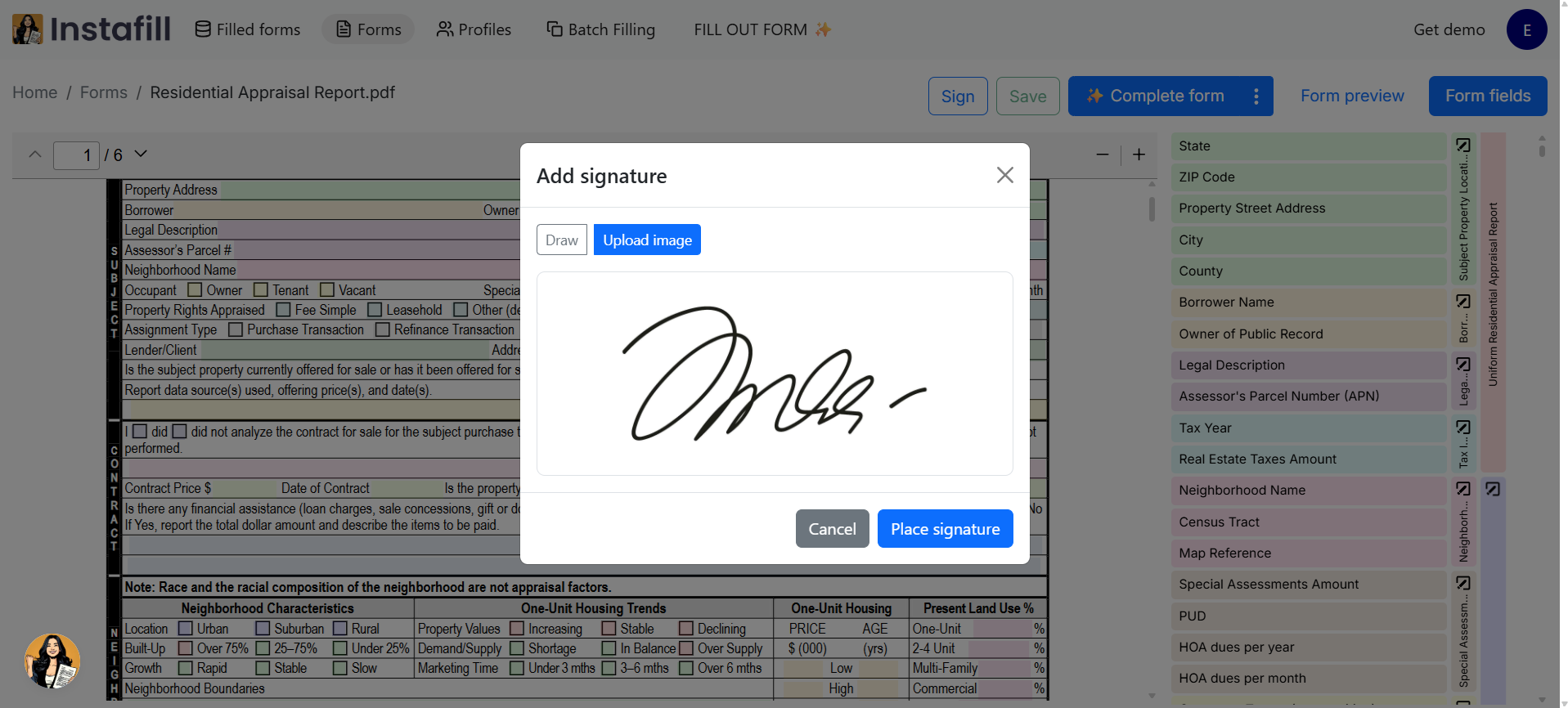
If you regularly fill out the same PDF form, adding the same signature to every completed document creates unnecessary manual work.
Instafill.ai now lets you add a reusable signature directly to a PDF form template. Place it once, and the signature can be included in future documents generated from that template. You can later move it, resize it, replace it, remove one signature, or remove all saved signatures without permanently changing the original PDF.
This feature is useful for teams that repeatedly complete authorization forms, bids, government documents, real estate forms, healthcare paperwork, applications, and other standardized PDFs.
What is a reusable template signature?
A reusable template signature is a signature saved in a specific position on a PDF form template. After it is configured, Instafill.ai can include it when generating new filled documents from that template, so you do not need to draw, upload, and position the same signature every time.
Each saved signature is handled as a separate object instead of being permanently flattened into the source PDF. This makes it possible to:
- Move a saved signature to another position.
- Resize it after it has been saved.
- Replace it with a different signature image.
- Remove one signature without deleting the others.
- Add several signatures to the same page or to different pages.
- Keep signature graphics separate while the AI analyzes and fills the form.
How to add a reusable signature to a PDF form template
1. Open the form template
Log in to Instafill.ai and open the Forms section: https://instafill.ai/forms. Select the PDF form to which you want to add a reusable signature.
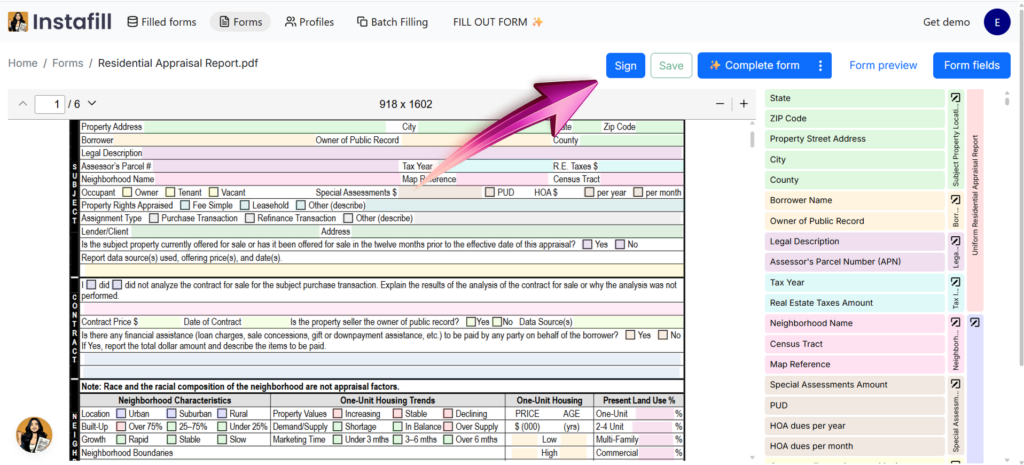
The form opens in the Instafill.ai PDF viewer. At the top of the page, click Sign.
2. Draw or upload the signature
The Add signature window gives you two options:
- Draw: Create the signature using your mouse or touchscreen.
- Upload image: Upload an image of your signature.
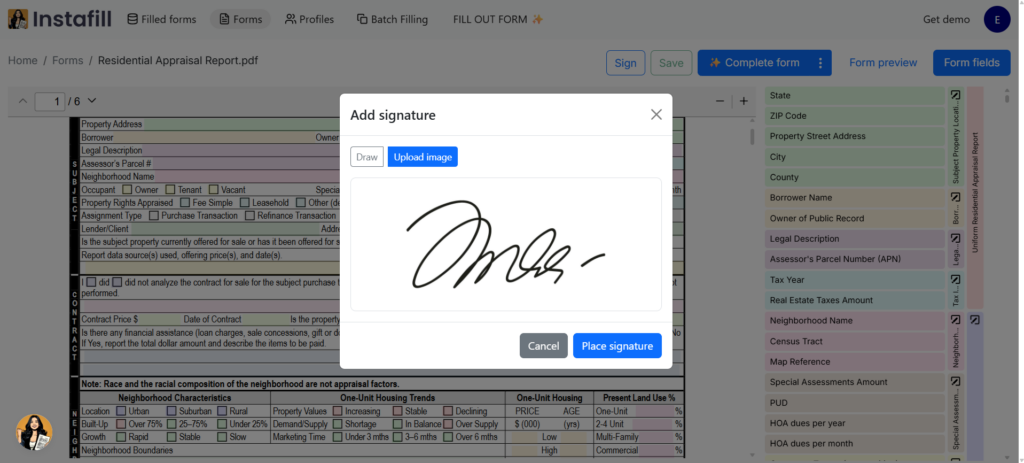
When drawing, use Clear to start again. For uploaded images, use a clean, tightly cropped file with minimal empty space around the signature.
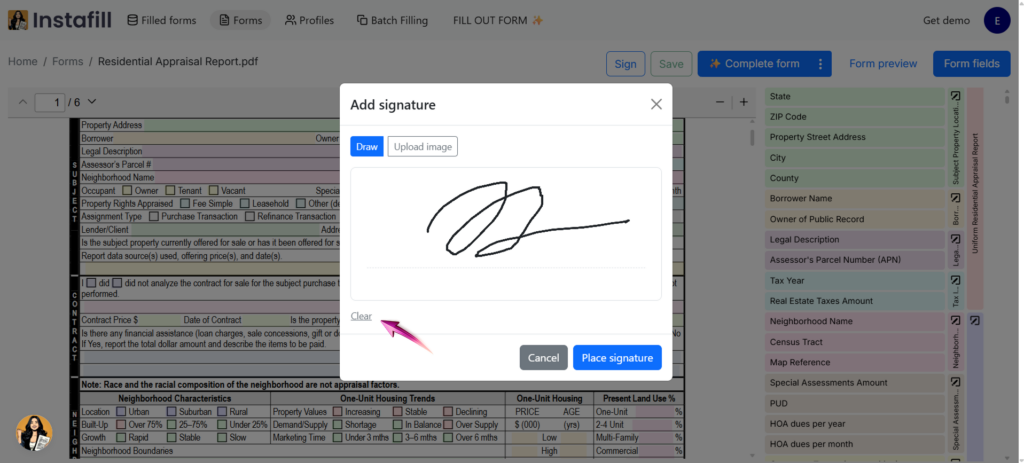
When the signature is ready, click Place signature.
3. Select the placement area
Navigate to the page where the signature should appear and create a box over the correct signature field. Instafill.ai places the signature inside the selected area while preserving its proportions.
Before confirming the placement, you can:
- Drag the box to move the signature.
- Drag a corner to change its size.
- Use the arrow keys for precise movement.
- Use the Redo box when you want to select the placement area again.
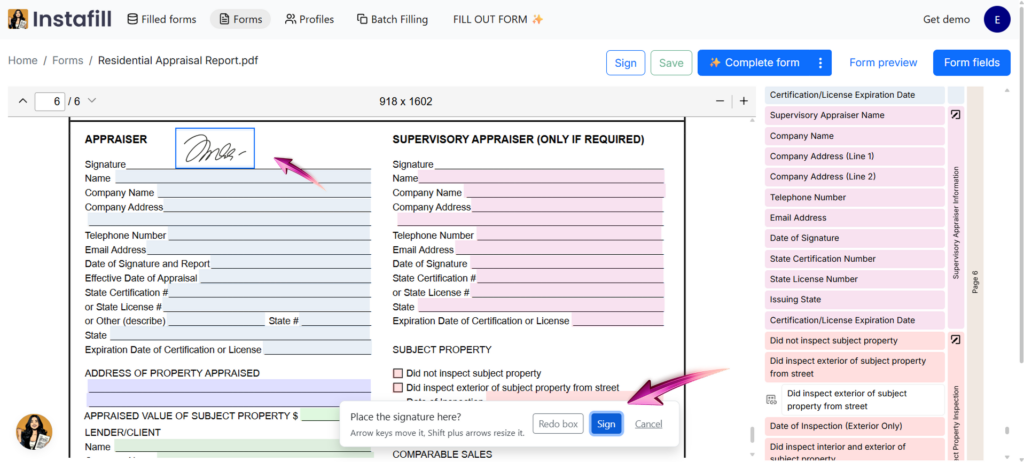
Click Sign to confirm the placement and wait for the Signature added confirmation.
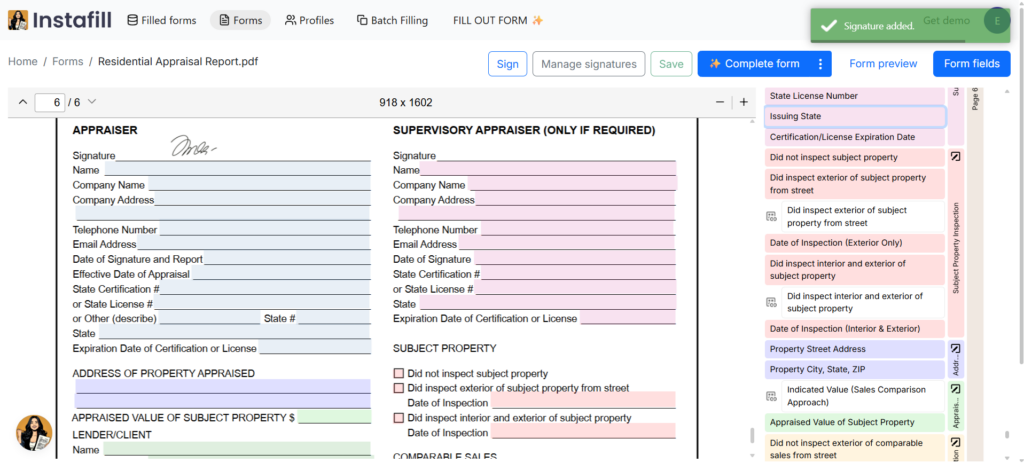
The signature is now attached to the template, and every form you generate from it will include it.
How to manage saved signatures
Once a template has at least one signature, a Manage signatures button appears in the toolbar next to Sign.
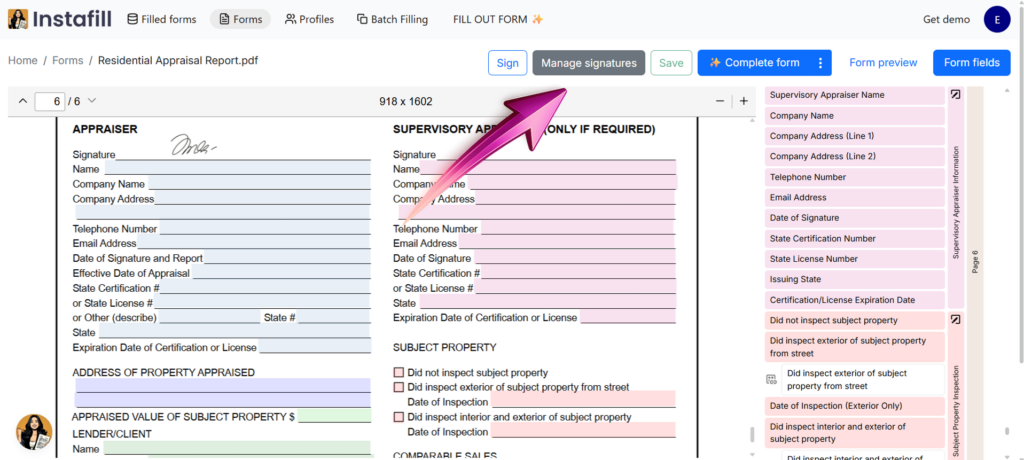
It opens a list of every signature on the template, each showing a preview and the page it sits on.
For each signature in the list:
- Replace – opens the drawing window again. The swap only happens once the new signature is in place, so if you change your mind halfway through, the original stays exactly where it was.
- Remove – deletes that one signature. Everything else on the template is untouched.
And at the bottom of the window:
- Edit placement – switches the page into edit mode. Each signature becomes an interactive element with handles at the corners: drag to move it, drag a corner to resize, or tab to a signature and use the arrow keys. Click Done to keep your changes or Cancel to discard them.
- Remove all – clears every signature from the template at once.
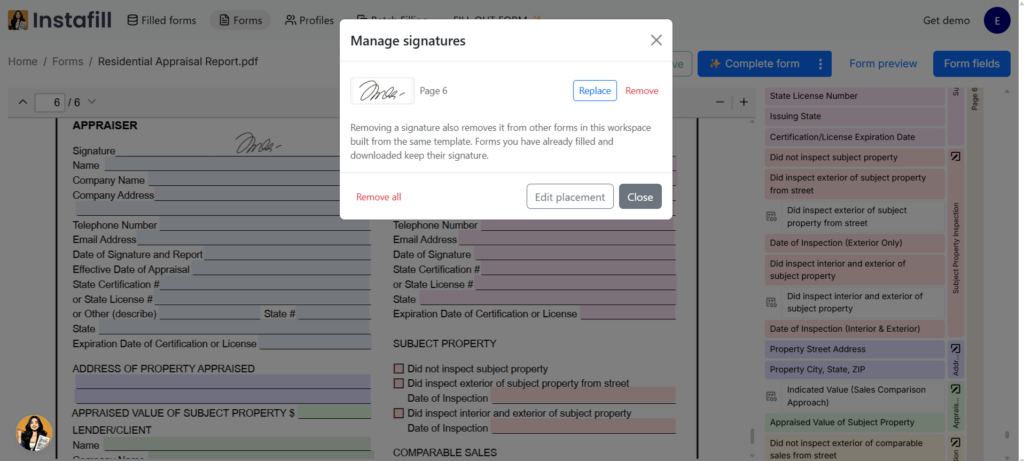
Important: Removing a signature also removes it from other forms in the same workspace that were built from the same template. Forms that were already filled and downloaded keep their existing signature.
Works on mobile: the feature is adapted for small screens, so you can add, replace, and reposition template signatures from your phone.
Adding multiple signatures
A form template can contain multiple reusable signatures. Add each signature separately with the Sign button.
For example, you can add:
- Two signatures on the same page.
- One signature on the first page and another on the final page.
- Different signatures for separate approval sections.
Every saved item appears separately in Manage signatures, together with its page number. This lets you replace or remove one item without affecting the others.
Why reusable signatures do not interfere with AI form filling
A signature can overlap lines, field labels, or other document content. When the graphic is permanently embedded in the source PDF, automated processing may interpret it as part of the page.
Instafill.ai analyzes and fills the clean PDF without the saved signatures being present on the page. The signatures are kept separately during form processing, and fine-tuning and other form-processing operations use the clean document.
This separation helps preserve predictable form-filling results while still supporting reusable signing workflows.
Will the signature affect other users or templates?
Adding a signature does not add it to the public base template or expose it to unrelated Instafill.ai users. However, forms in the same workspace that were built from the same template can use the same saved signature.
Removing a signature also removes it from other forms in the same workspace built from the same template. Forms that have already been filled and downloaded keep their signature.
Best practices for reusable signatures
- Confirm the correct page before placing the signature.
- Use Manage signatures instead of placing a second copy over an existing signature.
- Review a generated document after adding a new signature.
Frequently asked questions
Can I sign a PDF only after it has been filled?
Yes. Instafill.ai also lets you add a signature to an individual completed PDF. See our guide on how to e-Sign PDF documents with an AI form filler.
Can I move a signature after saving it?
Yes. Open Manage signatures, click Edit placement, and move or resize the signature on the page.
Can I remove one signature without deleting the others?
Yes. Each saved signature has its own Remove action.
Can I put signatures on multiple pages?
Yes. Add each signature separately and select the required page during placement. The Manage signatures window shows the page number for every saved item.
Can I replace a signature without deleting it first?
Yes. Click Replace next to the saved signature and create or upload the new one.
Will the AI try to read or fill the signature?
No. Reusable signatures are kept separate while Instafill.ai analyzes and fills the clean PDF form.
What happens if I cancel while replacing a signature?
The existing signature remains unchanged until the replacement has been successfully created and placed.
Will removing a signature change PDFs I already downloaded?
No. Forms that have already been filled and downloaded keep their existing signatures.
Start using reusable signatures
To add your first reusable signature:
- Open Forms in Instafill.ai.
- Select a PDF form template.
- Click Sign.
- Draw or upload the signature.
- Place and resize it on the required page.
- Click Sign and wait for the Signature added confirmation.
The signature remains available on the template until you move, replace, or remove it. With reusable template signatures, teams can automate another repetitive step in document preparation while retaining control over every saved signature.
Ready to try it? Log in to Instafill.ai, open a form template, and click Sign.