Sometimes you have a PDF, but you are not the person who should be filling it out.
A preschool sends parents six onboarding forms – the parents complete them, not the school. A lawyer has an intake packet for a new client – the client provides the details, not the lawyer. A property manager has a rental application – the tenant fills it. In each case, the document needs to end as a completed PDF. And we added a feature that handles this directly – it is called Request to fill.
How it works
The whole flow takes under a minute on the sender’s side, and a few minutes for the recipient.
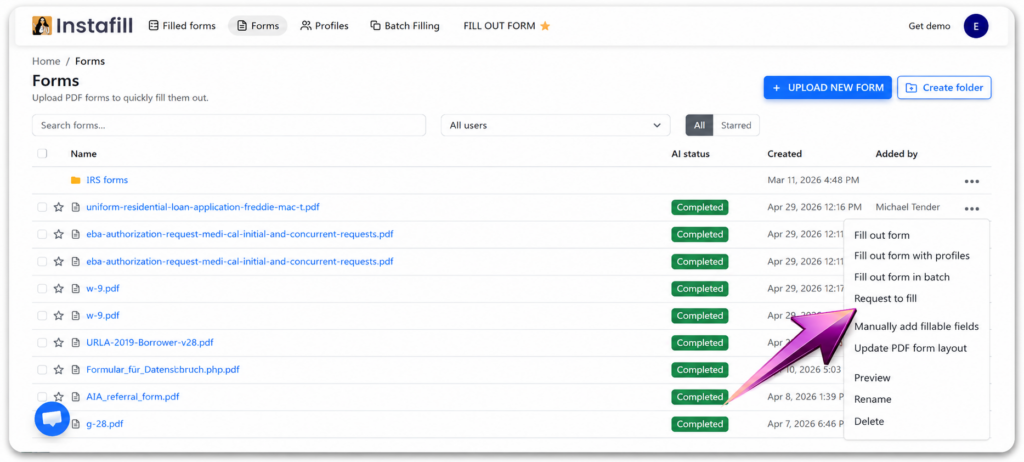
- Open the form’s menu and choose Request to fill
In your Forms list, click the menu (…) on any form. The new Request to fill option sits alongside the usual fill, batch, and edit actions.
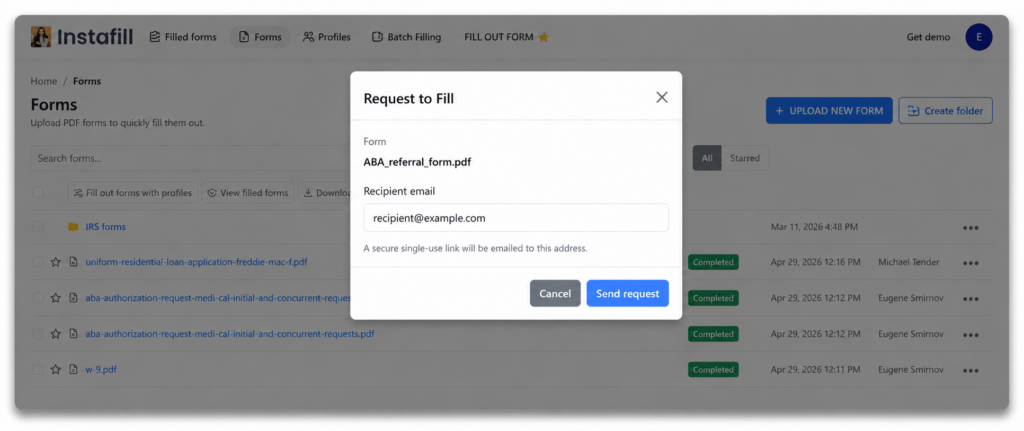
- Enter the recipient’s email and send
Type the email address of the person who should fill out the form. Instafill.ai generates a single-use link tied to that email and sends it to them.
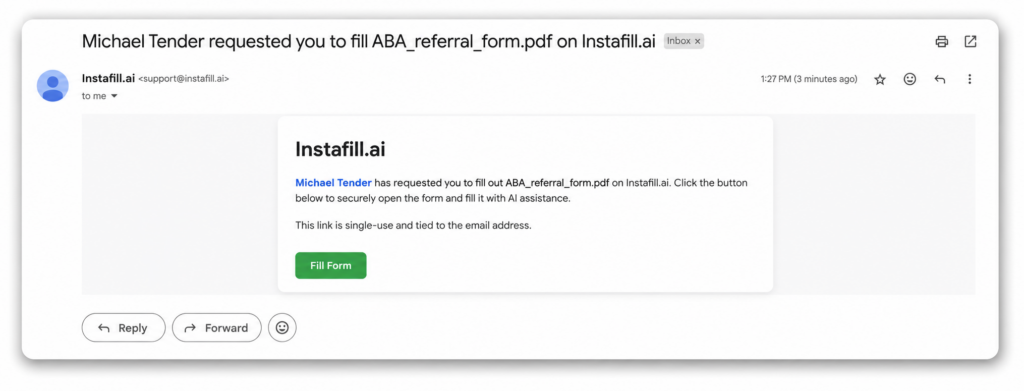
- The recipient receives a secure link
They receive an email from Instafill.ai with a Fill Form button. The link works only for that recipient’s email address, and only once.
- They fill the PDF in their Instafill.ai account with AI
When the recipient clicks the link, the form opens inside their Instafill.ai account – the same interface you use, with the same AI-assisted filling experience. They provide their information, review the filled PDF and confirm.
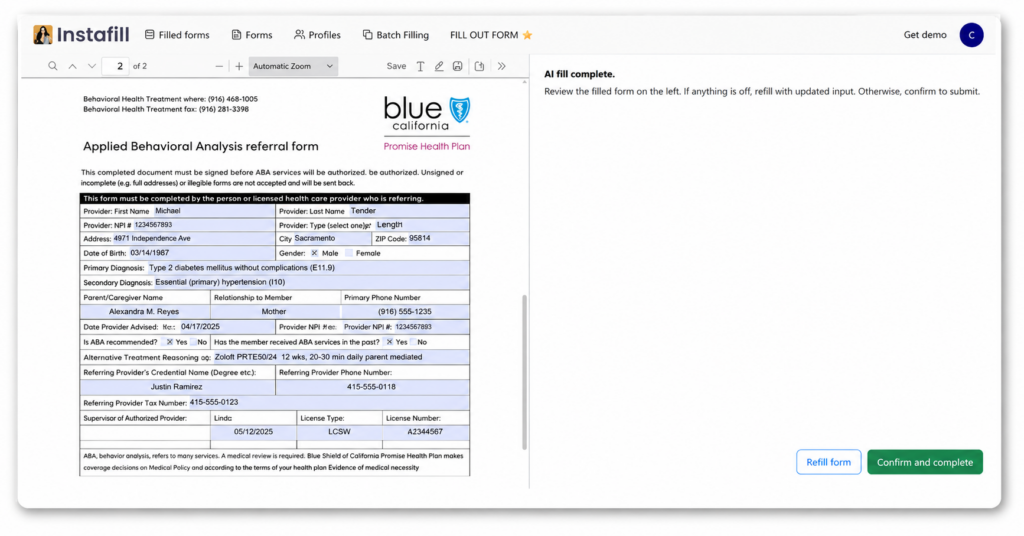
- You get the completed PDF back
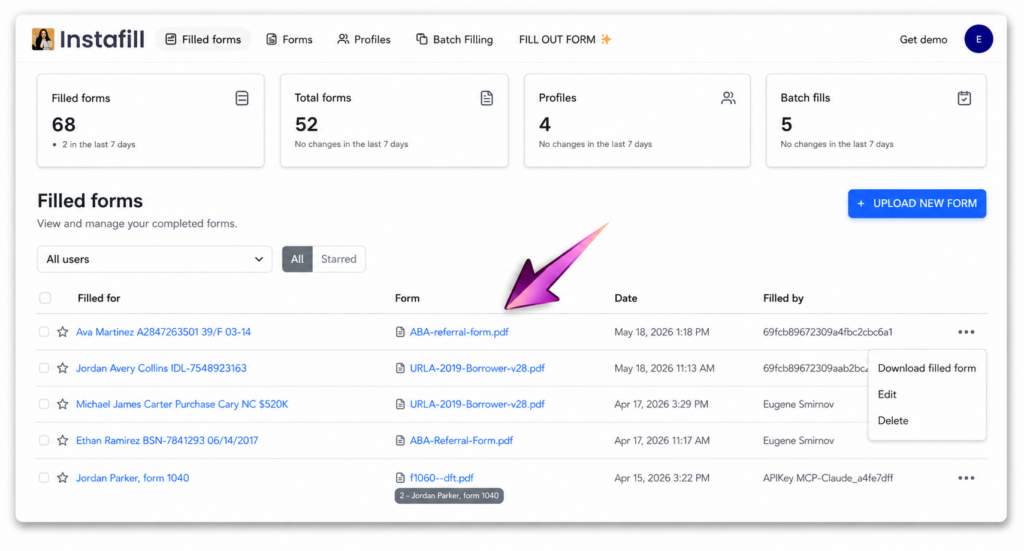
You receive an email notification when the form is submitted. The completed PDF appears as a new session in your Filled forms section, where you can open it, add or adjust any fields yourself if needed, and then download the final document.
Who is this for
Request to fill works any time a specific person – not a generic survey respondent – needs to complete a specific PDF. A few common examples:
Schools, preschools, daycares
Send parents the standard onboarding packet – enrollment, medical, emergency contacts – and let them complete every PDF themselves.
- Schools, preschools, daycares
Send parents the standard onboarding packet – enrollment, medical, emergency contacts – and let them complete every PDF themselves.
- Lawyers, accountants, advisors
Stop filling out intake and disclosure forms on behalf of clients. Send them the form, get it back signed and complete – and bill the time you saved differently.
- HR and operations teams
New hire paperwork, benefits enrollment, vendor onboarding documents – send each PDF to the right person and collect the completed file.
- Property managers and landlords
Applications, lease addenda, move-in checklists. Tenants fill them in directly; you get the final PDF in your records.
How is this different from a web form
Form builders like Google Forms, Typeform, JotForm, Fillout, Tally, and others collect responses into a spreadsheet. That works when you need a list of answers.
Request to fill is different. The deliverable is the actual PDF, completed – the same PDF a regulator, school, or counterparty originally provided. Nothing to map back, nothing to re-export. The recipient also does not retype the same standard fields again and again because the AI handles the population step for them.
What is next
This is the first version. Today you can send one form per request. On the roadmap: sending multiple forms as a single packet, a custom message from you to the recipient, and clearer tracking of who has filled what.
If there is a workflow you would like Request to fill to support, reply to this email and tell us – we are actively shaping the next iterations based on what users actually need.
Open any form in your Forms list and look for Request to fill in the menu.
Questions? Reply here or email [email protected].