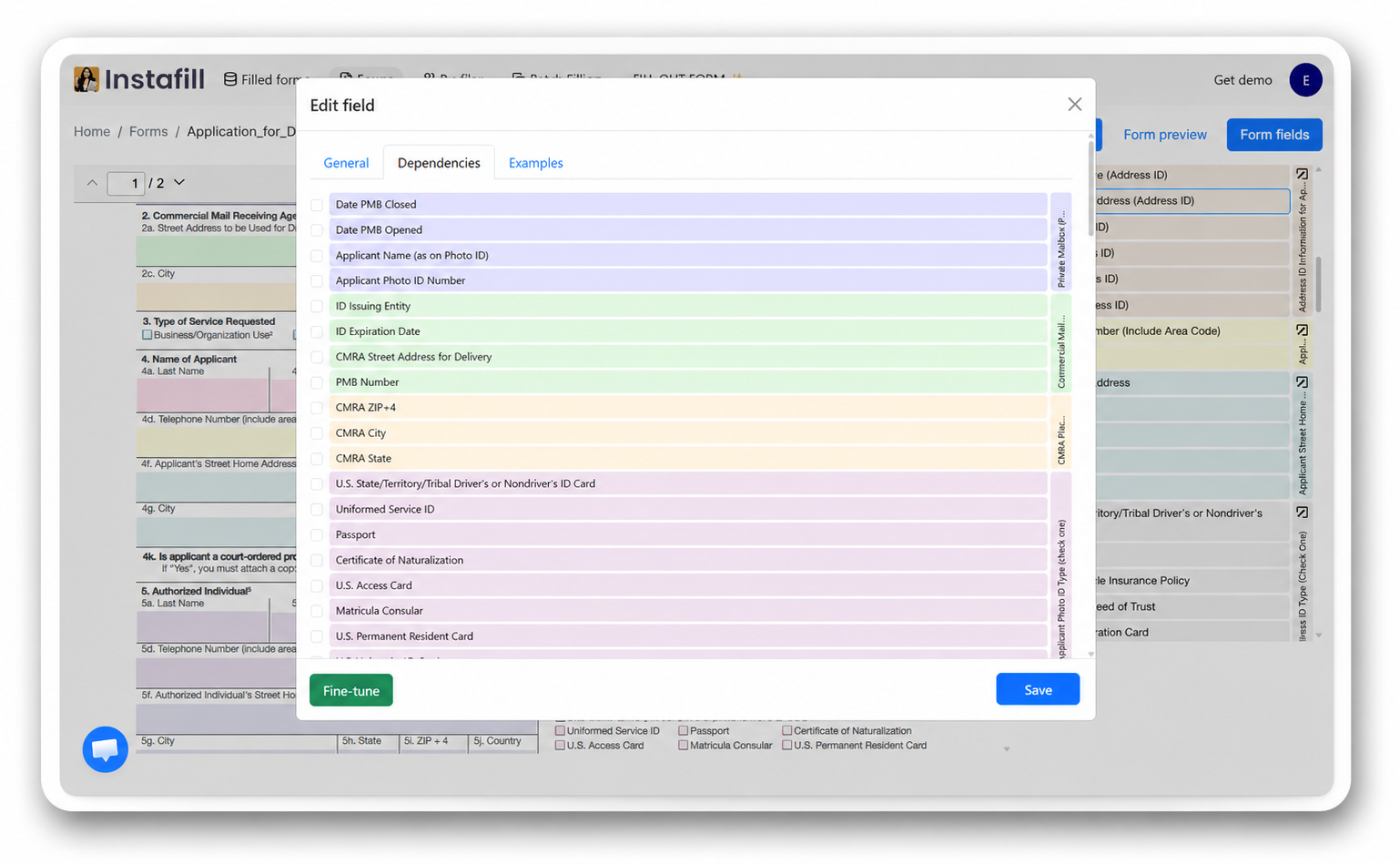
We’re excited to introduce the Field editor – a powerful new tool that gives you direct control over how Instafill.ai understands and processes your forms. This advanced feature enables you to optimize form intelligence, letting you review, correct, and adjust AI behavior for every field in a form to achieve perfect accuracy yourself.
Field editor is now available by default on every paid plan in Instafill.ai. Below, we explain how it works, why it matters, and how to get the most out of it.
Why a Field editor?
When you add a form to AI form filler for the first time, our platform performs a one-time fine-tuning process. This required step teaches the AI how to handle the specific form’s logic, constraints, table layouts, field relationships, and so on – making all subsequent fills instantaneous and accurate.
However, AI interpretation may not always be perfect on the first pass. Sometimes, even after fine-tuning, some fields may not be identified or mapped with complete precision. Complex form structures, a large number of form fields, intricate tables, unique layouts, or multiple pages with field dependencies, can occasionally create ambiguities that affects form-filling precision.
Without Field editor, users facing these issues had a few options:
- Use our flagging and accuracy improvement feature to report issues and wait for our team to make corrections
- Accept minor inaccuracies and manually adjust outputs
- Email or chat with our team to get prompt support
Field editor gives you a fourth option, and the most direct one: power users and teams handling frequent or specialized forms can access and configure each form field’s properties and its AI settings directly. This puts true workflow ownership in your hands.
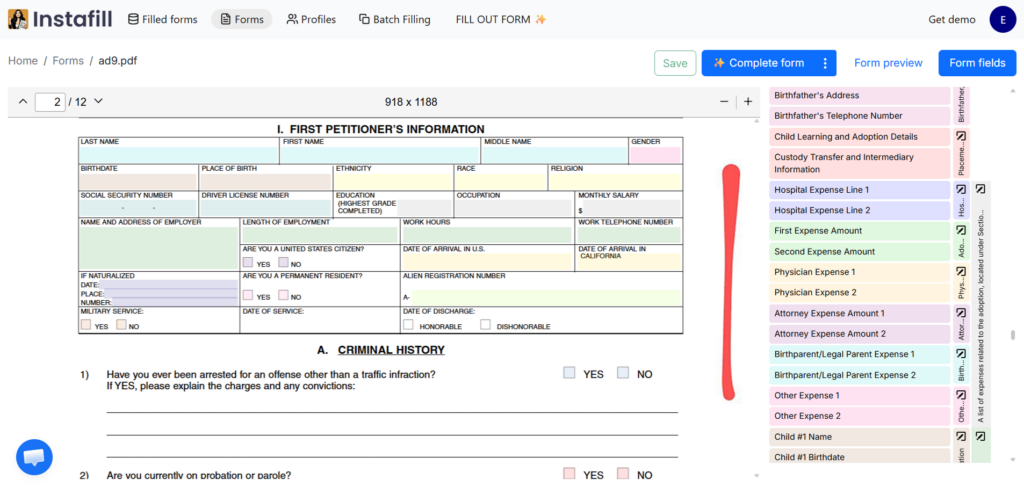
How Field editor works
After a form is uploaded to your Instafill.ai account and fine-tuning is completed, navigate to the form in your Forms library at https://instafill.ai/forms.
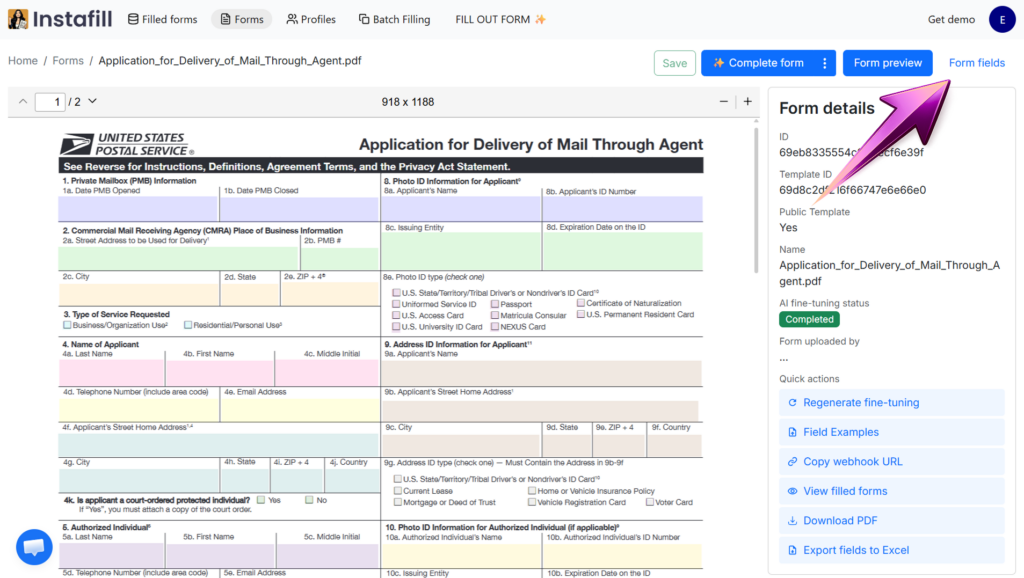
Step 1: Access your form fields
Click on the form to open the form viewer, then select Form fields in the top right corner.
Step 2: Select and review fields
The interface displays your form on the left and a complete list of identified fields on the right. Click any field in the preview; the field will be highlighted in the fields column. You can also select fields from the list to directly review their properties.
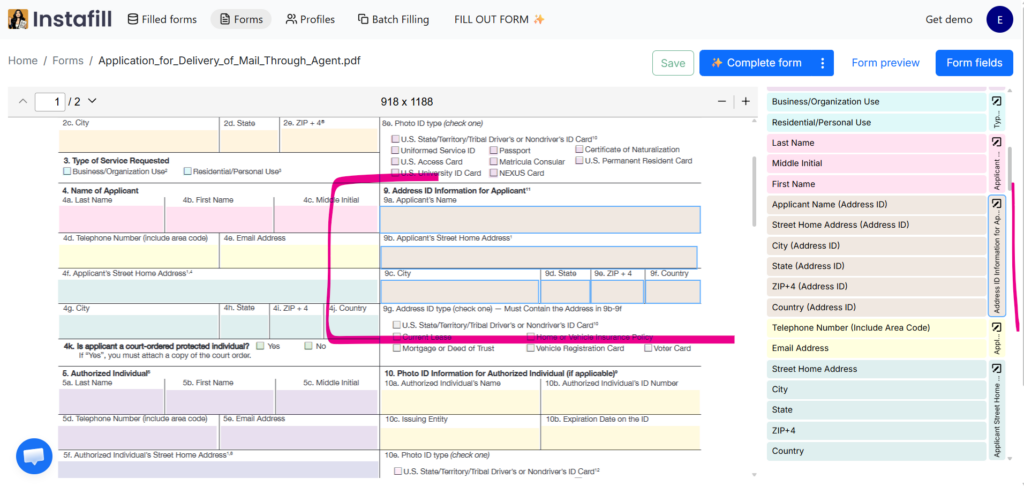
Fields are color-coded by group, making it easy to see logical associations.
Step 3: Edit field properties
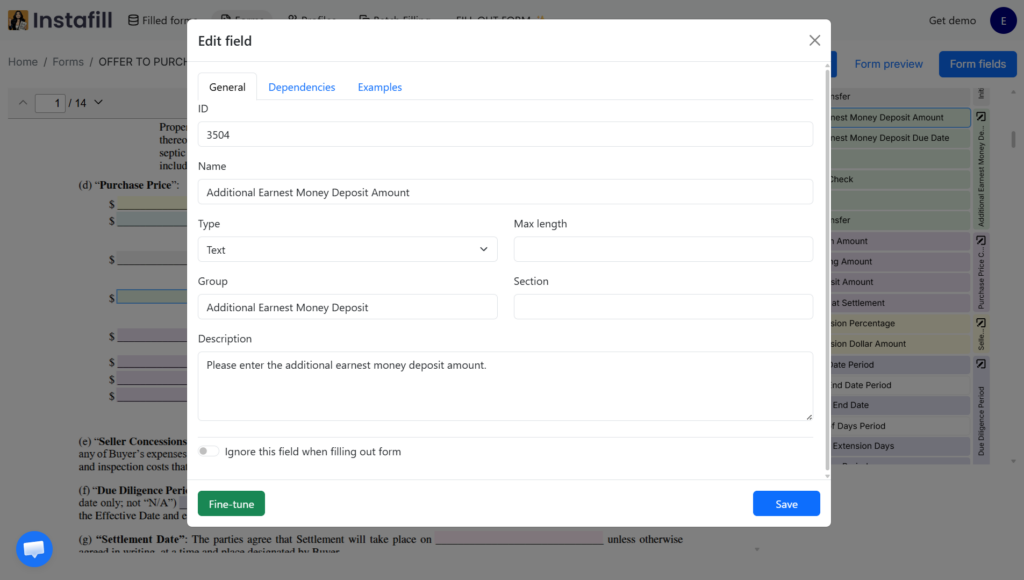
Selecting a field opens the field editing modal. It has three tabs – General, Dependencies, and Examples – which together cover every aspect of how the AI interprets and fills this specific field.
General
The General tab is where you adjust the core properties of the field:
- ID: A unique reference for this field within the form.
- Name: Clarify the field’s purpose with a descriptive name that helps AI understand the intended information.
- Type: The field type (Text, Number, Date, Checkbox, and so on). This tells the AI how to interpret and format the value before filling it.
- Max length: An optional character limit for the field’s value. Useful when the original form imposes a strict limit, such as a 2-character state code, a 10-digit phone number, or a short signature line. The AI keeps the generated value within this limit.
- Group: Assign fields to a logical group if misassigned or not grouped. Groups help organize related fields and let you configure AI behavior for sections at once.
- Section: Structure fields by form section for better organization.
- Description: Add detailed context – more specifics improve AI performance.
- Ignore this field when filling out form: Toggle to exclude a field from the filling process if it should stay blank.
Dependencies
The Dependencies tab lists every field in your form, grouped by section. Check any field that this one depends on – for example, a date that should match another date elsewhere on the form, a value that should be copied from a different field, or an output that is derived from several inputs. The AI uses these relationships to reuse values appropriately and keep related fields consistent across the form.
Examples
The Examples tab lets you provide one or more sample values for the field. This is particularly useful for narrative or text-heavy fields – clinical observations, summaries, incident descriptions, behavioral narratives, legal language – where the AI needs guidance on tone, vocabulary, sentence structure, and formatting rather than just what data to fill in.
Click Add example to add as many examples as you need. The AI analyzes them collectively and replicates that voice across future fills, so the output sounds like the way you or your team actually write. For a deeper dive on when and how to use examples, see how Instafill.ai can replicate your voice.
Step 4: Group-level control
One of Field editor’s most useful capabilities is organizing fields into logical groups and configuring AI behavior for each group independently.
Fields are automatically grouped by the AI during fine-tuning – typically into sections like Company Information, Billing Address, Shipping Address, Contact Information, etc. You can create new groups, rename existing ones, or reassign fields as needed.
For each group, you can configure:
AI Model: Choose the most appropriate model for the group’s complexity. For simple fields like names and addresses, a lighter model works perfectly and processes faster. For complex tables or lists, you can assign more advanced AI models.
AI Reasoning Effort: Adjust how deeply the AI analyzes fields in this group. Set higher reasoning effort (medium or high) for ambiguous or complex sections, and lighter effort (low) for straightforward fields. This balances accuracy with processing speed.
Custom Instructions: Add specific guidance for how the AI should handle this group. This is where you can provide context that makes all the difference. For example:
- “Add only the first three digits of the ZIP code”
- “Use the billing address if shipping address is not provided”
- “Format the phone number as (XXX) XXX-XXXX”
Ignore all fields of this group: Toggle this if the entire set of fields shouldn’t be filled by the AI.
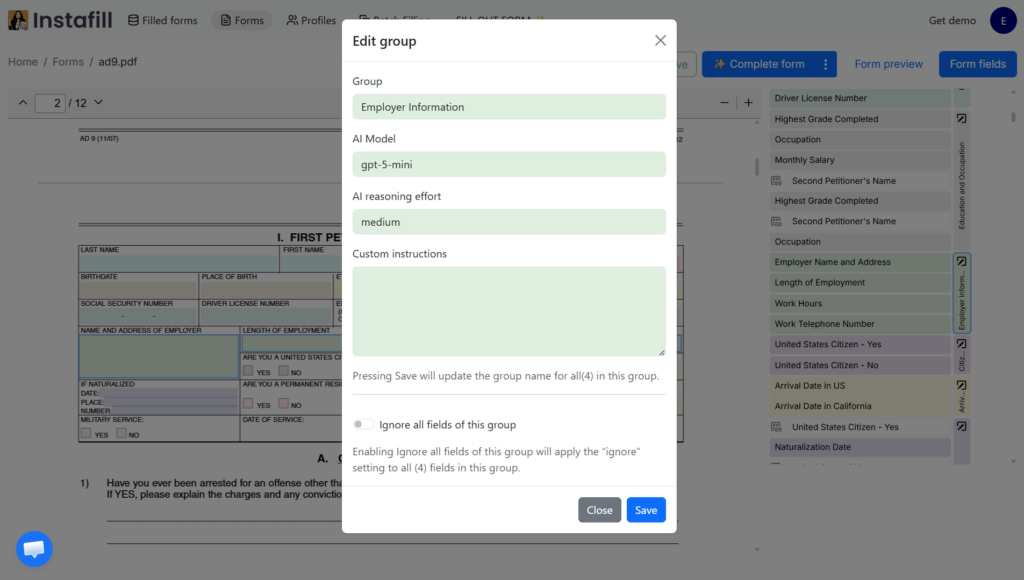
These group-level settings are very powerful. They allow you to fine-tune AI performance for different parts of your form, ensuring optimal accuracy where it matters most while maintaining efficiency for simpler sections.
After adjusting individual fields or groups, click Save. The changes are immediately applied. When you fill out the form again, the AI will use your updated settings.
Your edits stay private to your workspace
Privacy is a core priority at Instafill.ai: your forms, your fills, and your data are private to your workspace. The new isolation system applies that same principle to your Field editor settings.
The first time you adjust a field, Instafill.ai automatically creates a private configuration for your workspace. From that point on:
- Your settings apply only to your account. No other user is affected by your changes.
- The AI’s default handling of the form is not modified. If you adjust how AI handles a common form like a W-9 or I-9, the way it behaves on fresh uploads stays the same.
- Your customizations are preserved when we ship improvements. When our team updates a form’s default handling (better field detection, clearer descriptions, and so on), those updates never overwrite the manual edits you’ve made in your workspace.
You can adjust how AI handles any form in your library with confidence, knowing your changes always stay in your account. risk of losing your work the next time we ship an improvement to the underlying form.
Who should use Field editor?
Field editor is built for specific use cases. It’s not necessary for everyone, but it’s especially useful for:
Technical Teams & Developers: Organizations with in-house technical staff who prefer to optimize their own tools and workflows without external dependencies.
High-Volume Users: Users who process the same forms regularly and want to ensure perfect accuracy from the start, rather than correcting issues repeatedly.
Companies with Specialized Forms: Organizations working with industry-specific forms containing unique terminology, complex conditional logic, or non-standard layouts.
Partners & Integrators: Companies building Instafill.ai into their own workflows who need complete control over form intelligence.
Power Users Who Want Independence: Anyone who prefers to troubleshoot and optimize their own tools rather than waiting for support intervention.
If you’re filling the occasional form or working with straightforward documents, our standard workflow will serve you perfectly. Field editor is here when you need more control.
Technical advantages
- Immediate Corrections: No waiting for back-and-forth email support. See results from your changes in the next fill. Tweak, test, and finalize directly.
- Persistent Accuracy: Every correction is saved for future fills. Add forms, tune fields, and let your updated logic persist across all future workflows.
- Independence & Transparency: Reduce reliance on external support. Technical users, partners, and busy teams can align their forms with unique business requirements in real time.
- Workspace Isolation: Every edit is private to your workspace, so you can experiment freely without affecting other users or the original form.
Availability
Field editor is enabled by default on every paid plan in Instafill.ai. Open any form in your Forms library at https://instafill.ai/forms, click Form fields in the top right corner, and you have full access.
If you are on the free plan and would like to learn more about this feature, contact us at [email protected] – we’ll be happy to walk you through it and answer any questions.
We believe that giving you more control over the AI will unlock new efficiency gains and reduce the friction of working with complicated PDFs. We look forward to your feedback.