
We’ve added three new updates that give you more control over how you fine-tune and manage your forms. Here’s what’s new:
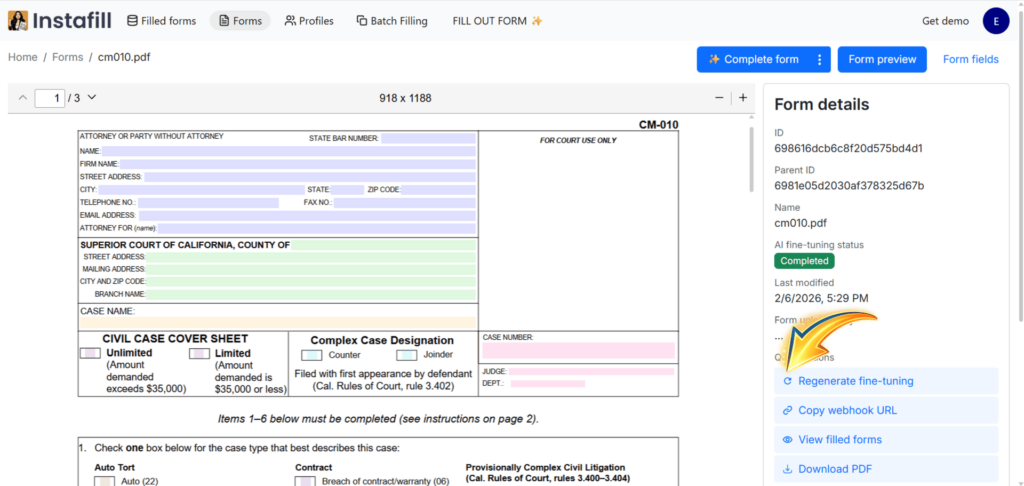
1. Regenerate fine-tuning
We improve Instafill.ai’s AI and processing algorithms every week – better handling of tables, repeatable sections, cross-page structures, field grouping, and more. If your forms were fine-tuned more than a few weeks ago, they’re likely missing out on these improvements.
Now you can fix that in one click. Hit Regenerate fine-tuning and your forms will use the latest AI – while preserving all your manual edits. Field names, descriptions, groups, dependencies, and ignored fields stay exactly as you set them. Only the fields you haven’t manually edited get regenerated.
Our recommendation: If you added forms months ago, we recommend regenerating their fine-tuning. We’ve shipped major improvements to how Instafill.ai processes tables, repeatable sections, and cross-page field structures since then. You will see noticeably better fill accuracy after regenerating.
2. Multi-select field editing
Managing fields one at a time works fine for standard forms, but when you’re working with a 20- or 50-page application that has hundreds of fields, it becomes less efficient – especially when you need to ignore an entire section, fine-tune a batch of fields, or add selected fields to an existing group.
Now you can select multiple fields at once using Ctrl+click (or Cmd+click on Mac) and apply actions to all of them in a single step.
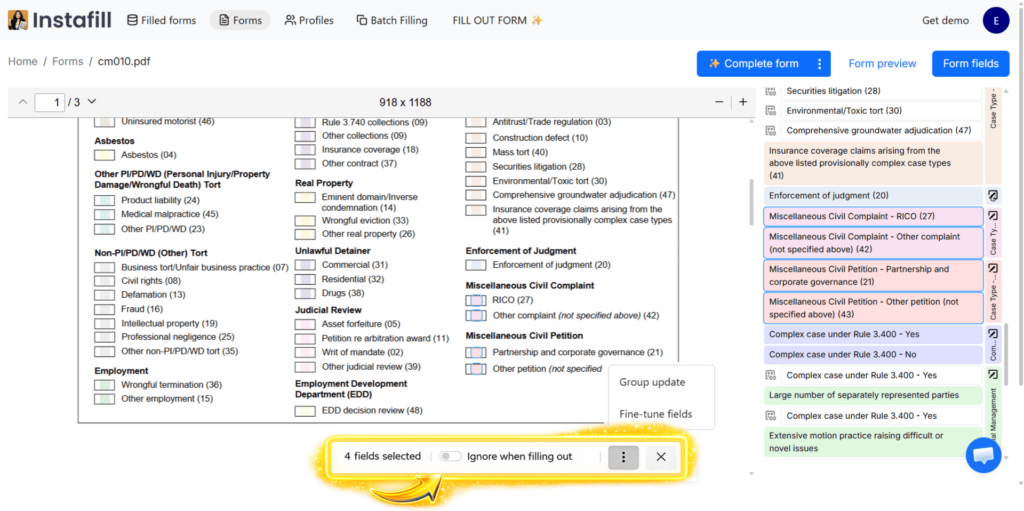
When you select fields, a floating control bar appears at the bottom of the page. From there, you can:
- Toggle “Ignore when filling out” for all selected fields at once
- Run fine-tuning for just the selected fields
- Batch-edit field grouping
- Create a table from selected fields (when all fields are on the same page)
This is a meaningful time-saver for forms with repeating structures, large checkbox groups, or sections where many fields need the same treatment.
Want access? Multi-select editing is part of the Field editor – a power user tool we can activate for your account on request. Just contact [email protected].
3. Auto fine-tune for newly added fields
When you add new fields to a form using the Update PDF form layout feature, fine-tuning now runs automatically for just those new fields. The system compares the updated field set against the original, identifies what was added, and runs a targeted fine-tuning — without re-processing existing fields.
This is especially useful when you convert a flat PDF to a fillable form, and the AI may miss some fields. Add them with the layout edito,r and they’re fine-tuned automatically – no extra steps.
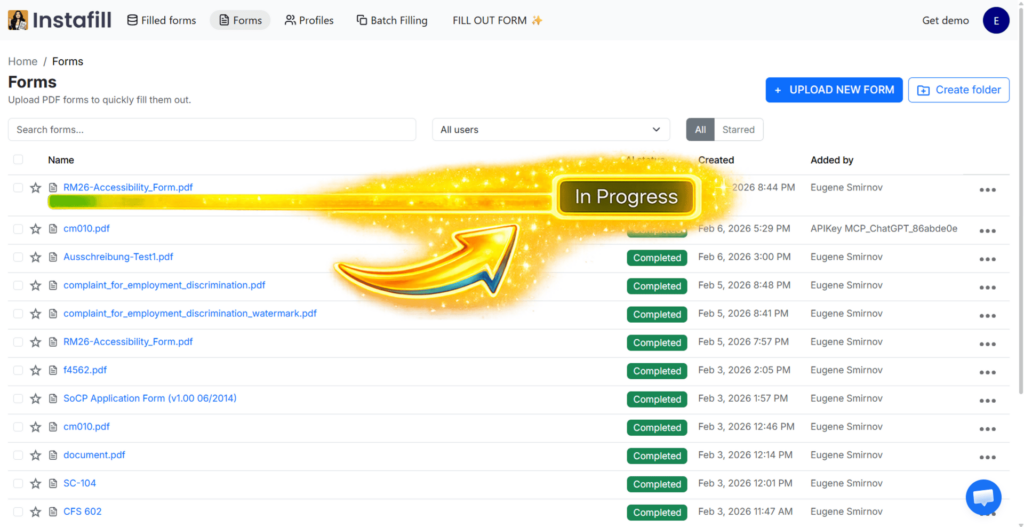
Under the hood: The system compares the current form fields with the original sample to detect which fields were added. Only those new fields go through the fine-tuning pipeline. Existing fields and all their configurations remain untouched.
Availability
Regenerate fine-tuning and auto fine-tune for new fields are available now for all users on paid plans. You’ll find the Regenerate button in the form details panel of any form with completed or failed fine-tuning.
Multi-select field editing is a power user tool we activate on request. Contact [email protected] to get access.
Who benefits most
These updates are most useful if you work with forms that require custom configuration – complex government applications, multi-page licensing packets, or industry-specific documents where precise field handling matters. If you’ve been editing fields manually or haven’t re-tuned your forms in a while, these features should save you significant time.
Questions? Contact us at [email protected].