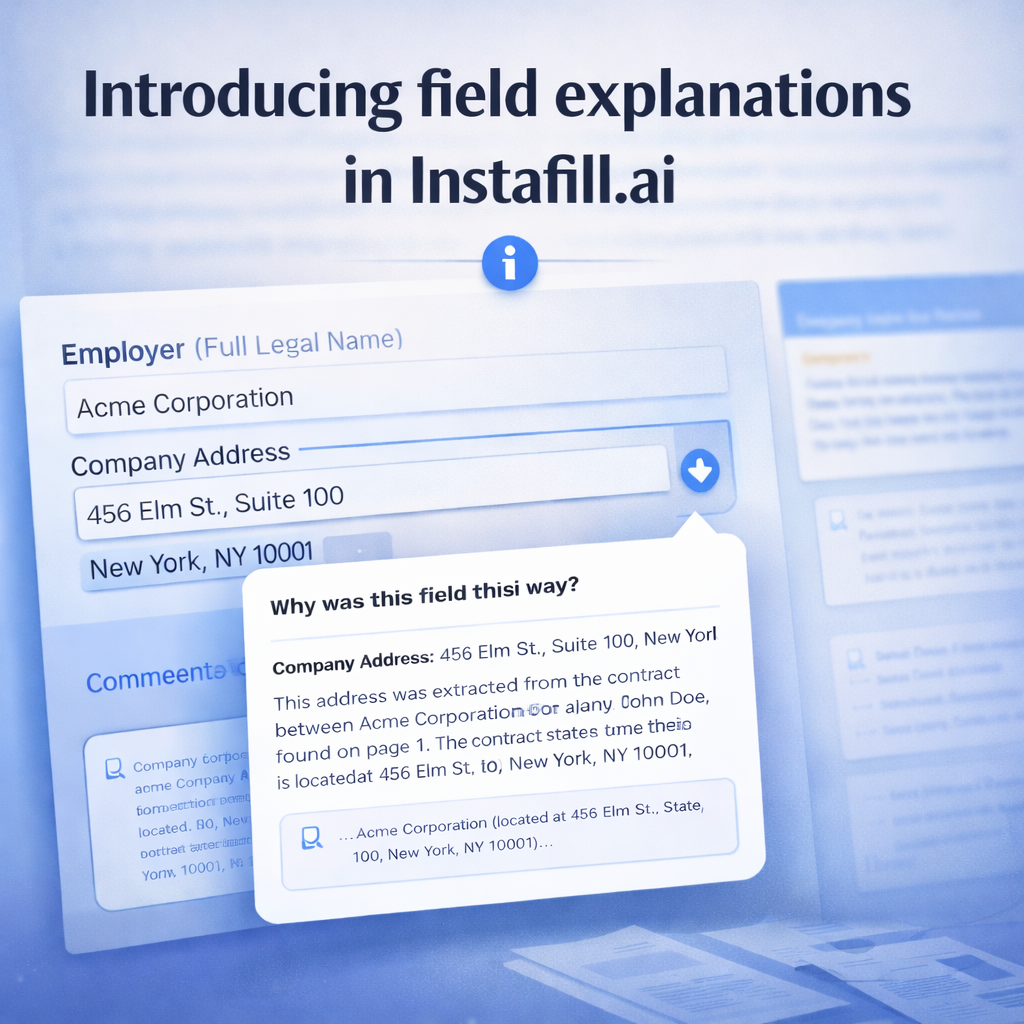
When AI fills out a form for you, it makes hundreds of small decisions – which value goes in which field, what to extract from your source documents, when to leave a field empty. Until now, those decisions happened invisibly. You got the results, but not the reasoning.
Today, we’re releasing field explanations – a feature that lets you click any filled field and see a short, specific explanation of why AI filled it that way, including what it relied on from your sources.
What are field explanations?
Field explanations solve this by making AI’s reasoning visible at the field level. Instead of re-reading your entire source document to verify a single field, you can click an info icon next to the field and see:
- What value was filled and why
- Which part of your source the AI relied on
- What specific text or context led to that value
- Why the field was left empty (if applicable)
The explanation is generated on demand using GPT-5.2 (our latest reasoning model), which reconstructs the original filling context and explains the decision in plain language.
How it works: Step by step
1. Fill out a form normally
Upload your source documents (PDFs, Word docs, images) and let Instafill.ai fill out the form. Nothing changes here – the filling process works exactly the same as before.
2. Review the filled form
After AI fills the form, you’ll see the completed fields just like before. The difference: when you hover over any filled field, you’ll see a small info icon (ⓘ) appear.
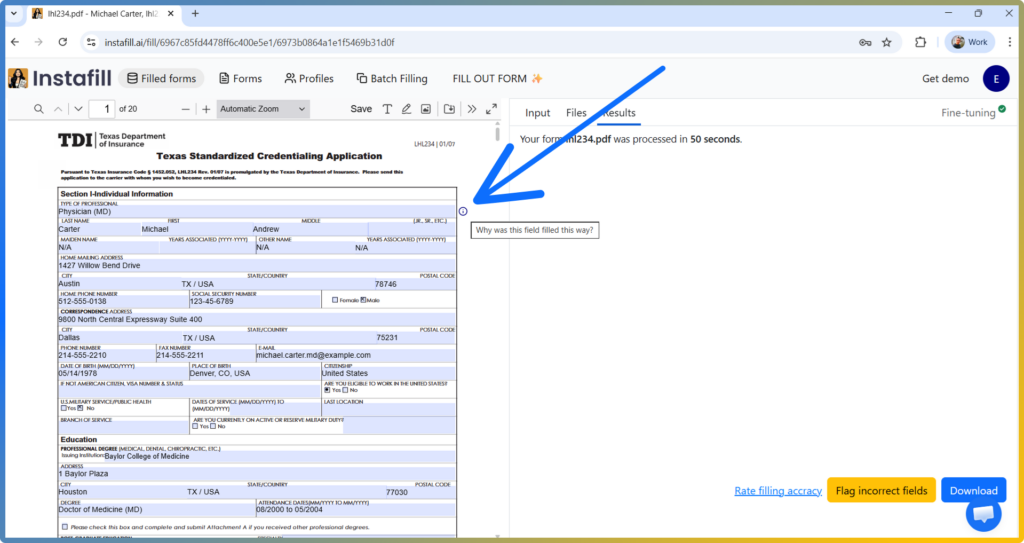
3. Click the info icon
Click the info icon and select “Why was this field filled this way?” A modal opens with a short explanation specific to that field.
4. Read the explanation
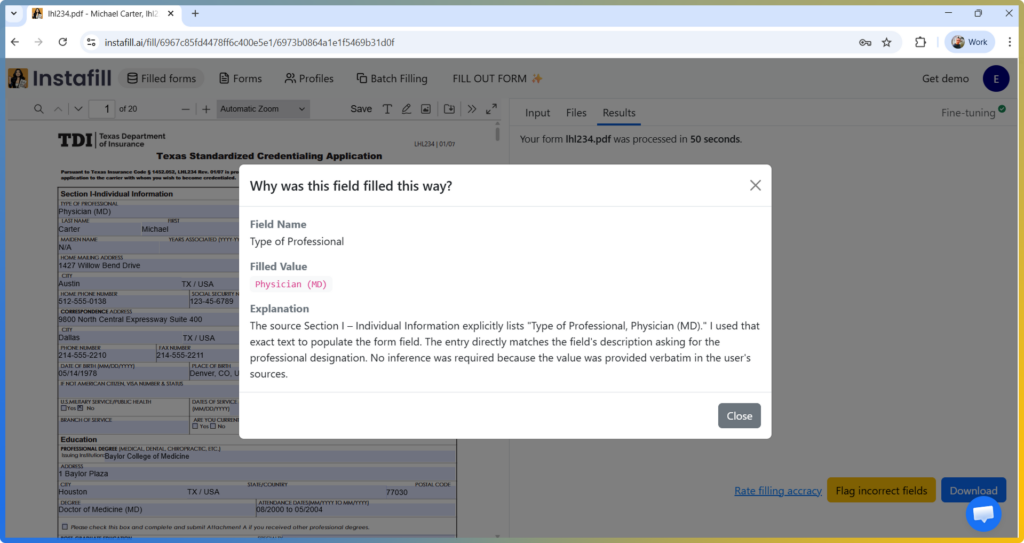
The explanation shows:
- The field name and the value that was filled
- A concise explanation (typically 3-5 sentences)
- References to the specific source document and text used
- The reasoning behind the decision
Technical details: How AI generates explanations
When you request an explanation, here’s what happens behind the scenes:
Reconstruction
Instafill.ai stores metadata about how each field was filled – the field definition, the source documents used, the relevant context from your uploads, and the final value. When you click the info icon, we reconstruct the exact AI call that generated that value.
Reasoning request
We append a request to the reconstructed context, asking the AI to explain its decision-making process. This prompt is designed to produce clear, concise explanations that reference source material directly.
Generation
The full context (field definition + source material + filled value + reasoning request) is processed by GPT-5.2, our latest reasoning model. This model is specifically optimized for step-by-step reasoning and transparent explanations.
The first request takes 2-4 seconds because the model needs to generate the explanation from scratch. After that, the explanation is cached and loads instantly if you check it again.
Caching
Once generated, explanations are stored at the field level in your session. They persist for the lifetime of that session. If you regenerate the form with new source data, the cache is cleared and you can request fresh explanations.
Supported field types (and what’s coming)
Currently supported:
- Text fields (single-line and multi-line)
- Checkboxes (checked/unchecked decisions)
- Radio buttons (selection among options)
These cover the majority of fields in most forms.
Not supported yet:
- Table fields (rows and cells)
Table fields present unique challenges because each cell is filled based on complex context from multiple sources. We’re actively working on table field explanations, but they require additional logic to handle row-level context and multi-cell relationships.
Privacy note: If you selected “Remove files immediately after processing” when filling the form, your source documents aren’t retained. Without source data, we can’t reconstruct the filling context, so explanations won’t be available for that session.
Why this helps
Instead of manually searching through long source documents, you can quickly confirm whether a specific field matches what’s in your sources and spot issues faster when something looks off.
| ✓ Faster review – validate specific fields without re-reading the whole source. |
| ✓ Better QA – understand what the model relied on when something looks wrong. |
| ✓ More transparency – see a concise explanation at the field level. |
What to expect
Explanations are specific, not comprehensive. Each explanation focuses on the single field you clicked. It won’t explain surrounding context or related fields unless directly relevant.
First requests take a few seconds. Generating an explanation from scratch requires AI processing time (2-4 seconds). After the first request, the explanation is cached and loads instantly.
Explanations reflect AI’s reasoning, not absolute truth. If AI made a decision based on limited or ambiguous information, the explanation will show that. It’s a window into the reasoning process, not a guarantee of correctness.
Getting started
Field explanations are available now for all users. Here’s how to try it:
- Fill out a form as you normally would
- Look for the info icon (ⓘ) when you hover over filled fields
- Click the icon and select “Why was this field filled this way?”
- Review the explanation and use it to verify or correct the field
The feature works for all forms, including forms you filled before today (as long as source data was retained).
Why we built this
Transparency isn’t optional when you’re handling important documents. Healthcare applications, legal filings, financial forms, government submissions – these require accuracy, and accuracy requires the ability to verify.
This feature is about making AI form-filling both fast and trustworthy. You get the efficiency of automation with the confidence of verification, and you can do it in seconds instead of minutes.
Available now
Field explanations are available for supported field types in sessions where sources are retained, including forms you filled out before today.
Try it now
Field explanations are live in your account. Fill out any form and click the info icon to see it in action.
Questions or feedback? We’d love to hear from you at [email protected].