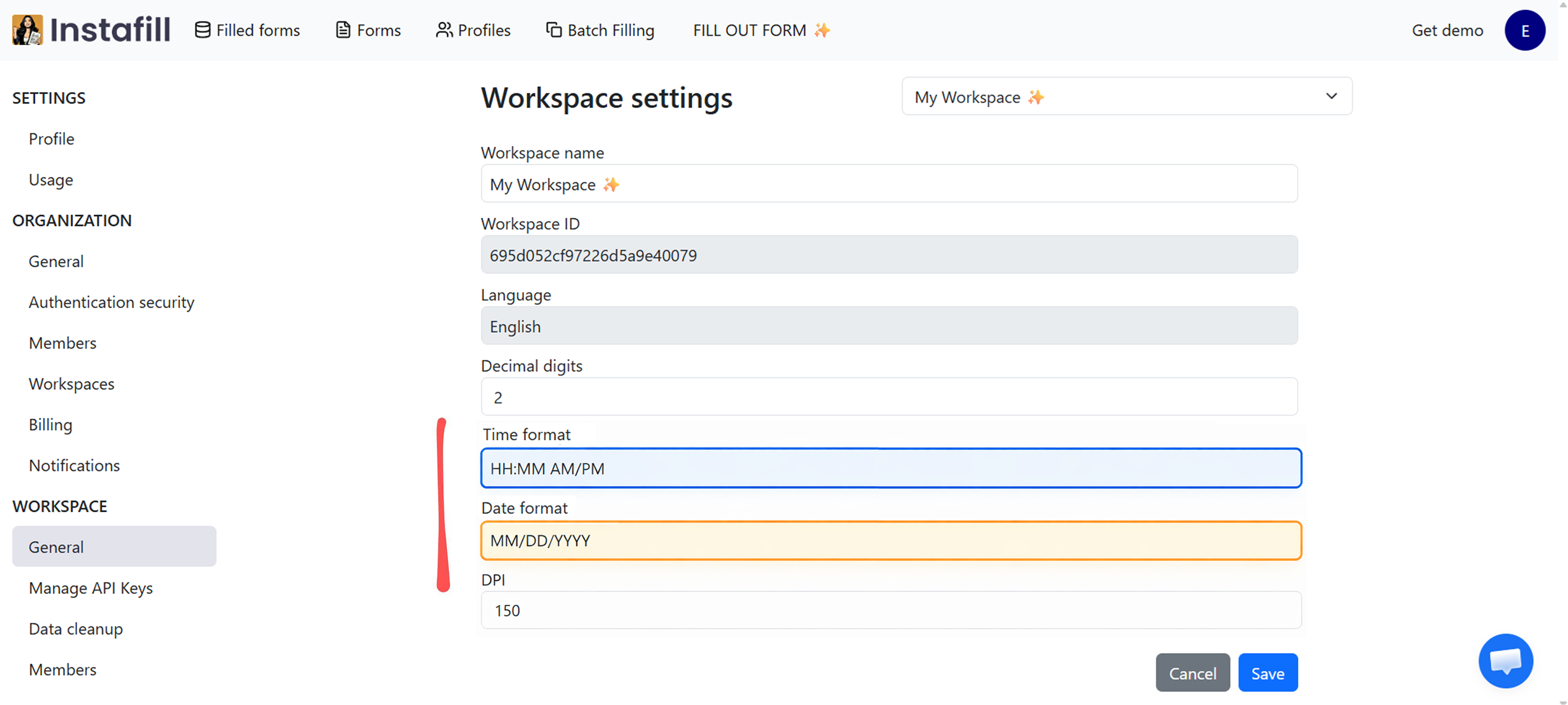
We’ve added Workspace Date and Time formatting to Instafill.ai. Set your preferred format once in workspace settings, and every form in that workspace uses it automatically. No more correcting dates after each fill.
When filling out a PDF form with Instafill.ai, you may have noticed that some fields containing dates were not always consistent. For example, one field might show “March 3, 2026”, while another in the same form shows “03/03/2026”.
This happened because your source data might use different date styles, and previously the AI didn’t know which one was correct for your case. The result was a filled form with mixed formats, which is not ideal when you need to deliver a professional, accurate document.
To solve this, we’ve added a setting in your Workspace where you can choose the exact date format you want. Once you define the format (for example, DD/MM/YYYY), Instafill.ai will apply it to all fields typed as Date in your forms. That means every date in the document will be consistent, no matter how the original input was written.
This update makes your forms cleaner, easier to read, and ready to use without manual corrections.
How it works under the hood
When Instafill.ai processes a form during fine-tuning, it automatically identifies the type of each field – Text, Date, Time, Number, or Checkbox. Date and time fields are tagged and stored in the system, so Instafill.ai knows exactly which fields need formatting.
When you set a date or time format in your workspace settings, the AI dynamically generates format instructions during every autofill. If a group of fields contains at least one date or time field and a format is configured, the instruction is automatically included in the AI prompt. No manual intervention needed.
All existing forms have been migrated to support the new field types. You don’t need to re-upload or re-fine-tune anything.
How to set the date format
- Go to instafill.ai.
- Click your profile icon (top right).
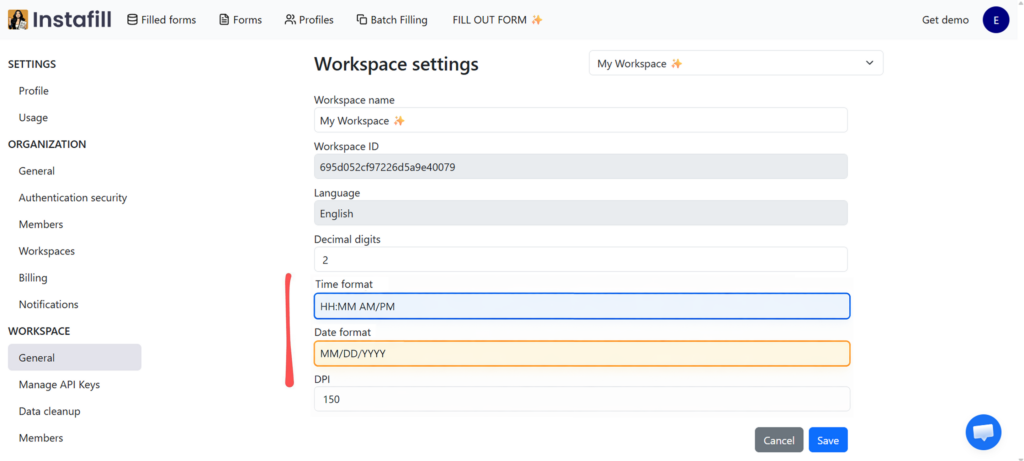
- Click on your workspace name to open workspace settings.
- You’ll land on the General settings page.
- In Date format, enter the format you prefer (for example, DD/MM/YYYY, MM/DD/YYYY, or YYYY-MM-DD).
- Click Save.
- Fill out the form again. All Date fields will now follow the format you set.
The formatting applies to all newly filled PDFs. Existing filled documents won’t change automatically, but the next time you fill out any form in that workspace, your format will be used.
Supported date format examples
You can enter any date format string. Here are some common examples:
- MM/DD/YYYY – US standard (e.g., 03/15/2026)
- DD/MM/YYYY – UK and international (e.g., 15/03/2026)
- YYYY-MM-DD – ISO standard (e.g., 2026-03-15)
- DD.MM.YYYY – European (e.g., 15.03.2026)
- Month DD, YYYY – Long form (e.g., March 15, 2026)
Time format
In the same settings page, you can also set a Time format. For example, you may prefer HH:MM AM/PM (12-hour clock, e.g., 9:05 AM) or HH:MM (24-hour clock, e.g., 14:30). Once set, Instafill.ai will apply the format consistently across all fields typed as Time in your forms.
Decimal digits
You’ll also notice a Decimal digits setting on the same page. This controls how many decimal places are used when the AI fills Number fields. For example, setting it to 2 means a value like “1500” could appear as “1500.00” if the form expects decimal precision. This is especially useful for financial, insurance, and accounting forms.
Overriding the format for specific fields
The workspace setting applies to every form in that workspace. But sometimes a specific field needs a different format than the workspace default.
To handle this, open the Field Editor for any form, select the field you want to customize, and change its type or add a field-level format instruction. Field-level settings take priority over the workspace default, so you can set exceptions wherever you need them.
For example, your workspace might use MM/DD/YYYY for most fields, but a particular form might have a field that specifically requires YYYY-MM-DD. You can override just that field without changing the workspace setting.
Notes
- The setting applies only to newly filled PDFs. Existing filled documents won’t change automatically. The next time you fill out any form in that workspace, your format will be used.
- If you need different formats for different clients, teams, or jurisdictions, create a separate workspace for each, with its own Date format.
- The format setting works with all source data types – whether your source is a text file, PDF, or typed instructions, Instafill.ai will convert dates to your configured format.
When this matters most
International teams and multi-jurisdiction filings
If your team files documents in the US (MM/DD/YYYY), UK (DD/MM/YYYY), or internationally (YYYY-MM-DD), create separate workspaces for each jurisdiction and set the correct format once. Every form in each workspace follows its local convention automatically.
Healthcare and compliance documentation
Medical reports, insurance authorizations, and compliance forms often require exact date formatting. A wrong format can cause submission rejections. Set your required format once, and every clinical note, assessment date, and service date is formatted correctly.
Construction, legal, and government forms
Permit applications, contract dates, and regulatory filings all have specific formatting expectations. Whether you need “September 15, 2026” in long form or “09/15/26” in short, workspace formatting ensures consistency across every document.
Immigration and visa applications
Immigration forms across different countries use different date conventions. A single application package might need to be consistent across dozens of pages. Setting the workspace format ensures every date on every page matches the required convention.
Why use this feature
Setting a Date format once in your workspace saves you from checking every field manually after filling a form. It removes formatting mistakes, keeps your documents professional, and ensures that whoever receives them – whether a client, a government office, or an internal team – sees clear and consistent information.
For teams processing dozens or hundreds of forms, even a few seconds per correction compounds into hours of wasted time. Workspace-level formatting eliminates this entirely. One setting, applied universally, across every form and every autofill in your workspace.