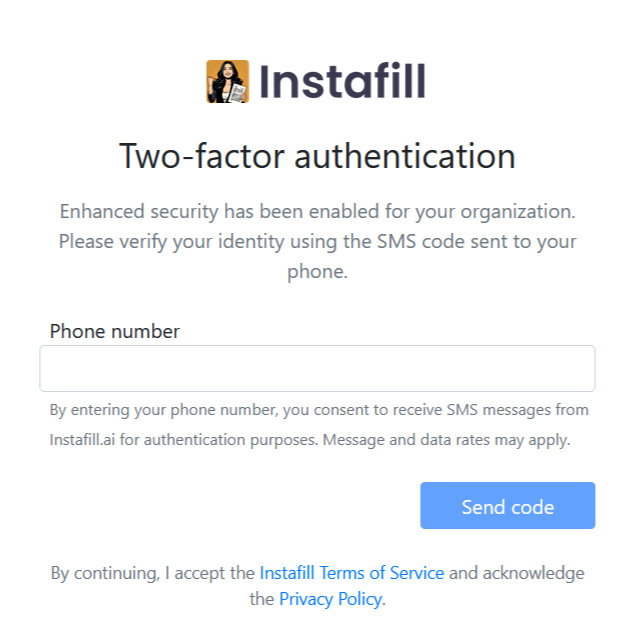
Instafill.ai now supports two-factor authentication (2FA) — a key security upgrade that adds an SMS verification step every time you log in. Whether you sign in with email/password, Google SSO, or Microsoft SSO, 2FA ensures that only authorized personnel can access your workspace.
This update helps your organization comply with essential security frameworks like ISO 27001, HIPAA, PCI-DSS, and SOC 2, while giving Organization Owners a single switch to enforce protection across their entire team.
In this guide, we’ll walk you through why we built 2FA, how it works, and exactly how to enable it — step by step.
Why We Added 2FA
Passwords alone no longer offer adequate security. Recent studies confirm that more than 80% of data breaches involve stolen or weak credentials. Many enterprise customers now perform formal security reviews before adopting cloud services, and requiring two-factor authentication has become a baseline control in most compliance frameworks.
Major compliance frameworks and regulators increasingly mandate 2FA as a foundational security measure, including:
- ISO 27001
- HIPAA (Health Insurance Portability and Accountability Act)
- PCI-DSS (Payment Card Industry Data Security Standard)
- SOC 2 (Service Organization Control 2)
Adding 2FA lets Instafill.ai customers meet those expectations without extra tools. It also gives every organization owner a single switch to raise the security bar for their whole team — blocking the vast majority of credential-based attacks.
What’s New: Two Key Features
1. SMS-Based Verification for All Login Methods
After signing in with your email/password, Google, or Microsoft account, you’ll now receive a 6-digit verification code via SMS. This works seamlessly across all authentication methods, ensuring consistent security regardless of how you log in.
- Works with email/password, Google SSO, and Microsoft SSO
- Simple SMS delivery — no special apps or tokens required
- Instant code delivery to your phone
2. Organization-Wide Security Enforcement
Organization Owners (the admins who own the workspace) can now enforce 2FA for all members of their Instafill.ai organization. Once an owner enables the 2FA requirement, every team member will be prompted to set up and verify via SMS at their next login.
This ensures consistent protection across your entire workspace — no security gaps from individual users opting out or forgetting to enable protections.
How Instafill.ai’s 2FA Works
Instafill.ai’s 2FA adds a quick and easy SMS verification step right after your initial login, regardless of the login method you use (email/password, Google SSO, or Microsoft SSO). Once enabled by your organization’s owner, every team member must authenticate using an SMS code sent directly to their phone.
Key advantages:
- Simple and reliable SMS verification
- No need for external apps or tokens
- Immediate compliance with security best practices
How to Set Up 2FA: Step-by-Step Guide
Step 1: Navigate to Your Workspace Settings
Go to https://instafill.ai/ and click on your profile icon in the top-right corner. From the dropdown, click on your workspace name — this will take you to your Workspace Settings page.
Step 2: Open Authentication Security and Enable 2FA
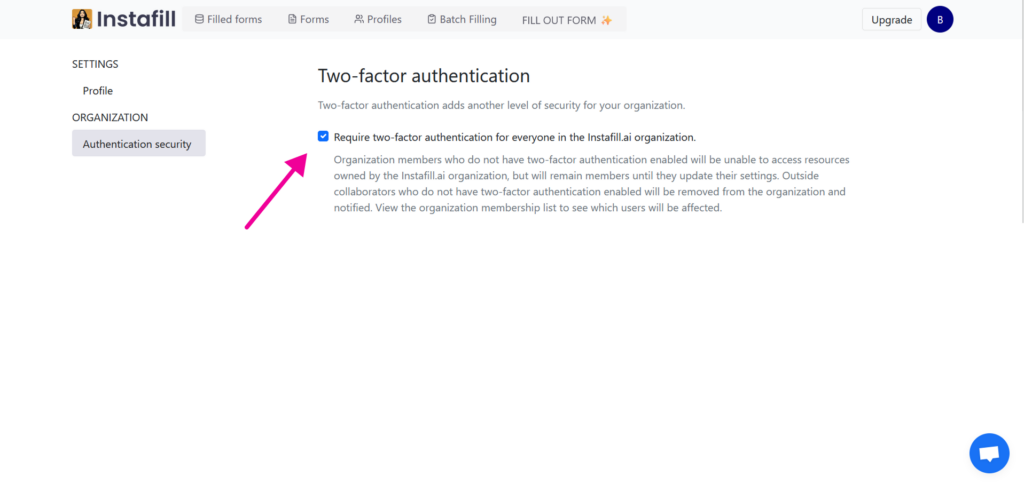
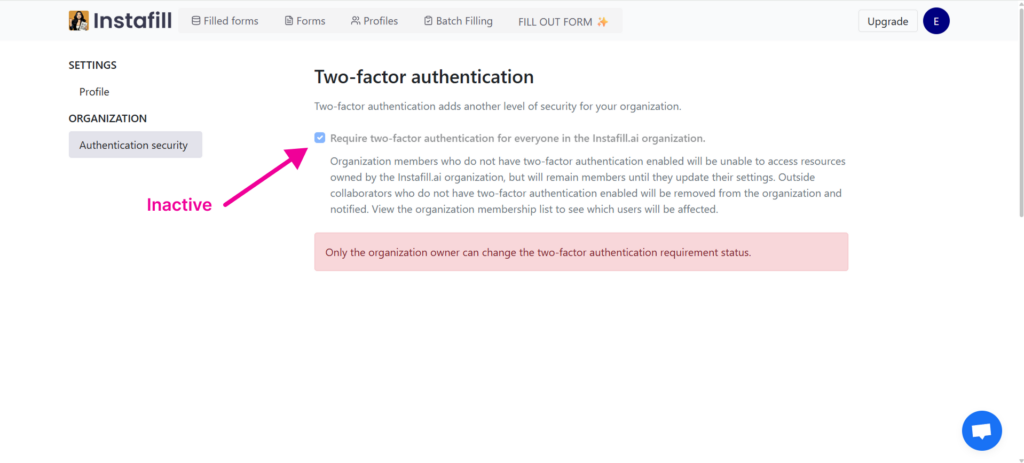
In the left sidebar, under ORGANIZATION, click Authentication security. This will take you to the Two-factor authentication page at instafill.ai/settings/organization/authentication.
You’ll see a checkbox labeled “Require two-factor authentication for everyone in your organization.” Simply check this box to activate the feature. The system will immediately enable 2FA for your organization.
Step 3: Log Out and Log Back In
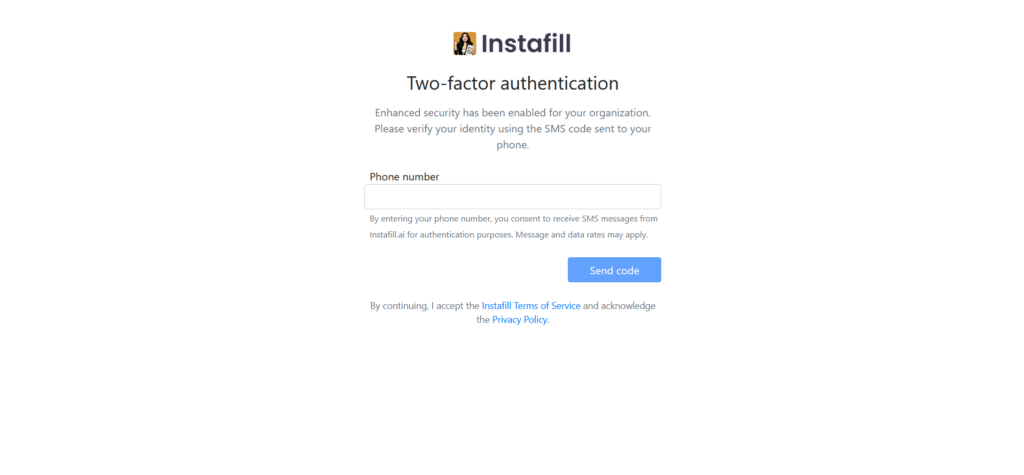
2FA is now active for everyone in your organization. To see it in action, log out of Instafill.ai. When you sign back in (and every time thereafter), a prompt will appear asking you to enter your phone number. Click Send code and we will immediately text you a one-time 6-digit code.
Step 4: Enter Your Verification Code
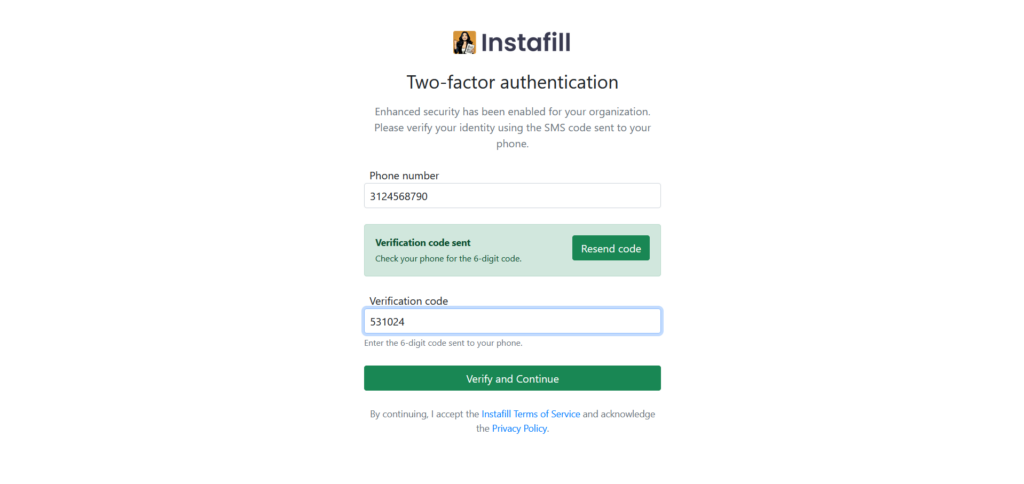
Check your phone’s SMS messages. Enter the 6-digit code you received into the verification field. Click Verify and Continue to confirm.
That’s it! Once verified, you’ll be signed in to your Instafill.ai account. If you are an organization owner, you can now toggle the option to Require 2FA for all members, enforcing this extra layer of security across your team.
Important Note: Who Can Manage 2FA
Only Organization Owners can enable or disable the two-factor authentication requirement. Other team members of the organization cannot modify this setting — they will see a warning message indicating that only the owner can change the 2FA status.
Benefits of SMS-Based 2FA
Implementing SMS-based two-factor authentication within your organization brings several key advantages, enhancing the overall security and resilience of user accounts:
- Enhanced Security — Ensures that only authorized personnel have access, providing an extra shield against data breaches and cyber threats.
- User-Friendly Experience — Simplifies the authentication process without requiring additional apps, making it accessible and hassle-free.
- Streamlined Compliance — Aligns with crucial regulatory requirements (ISO 27001, HIPAA, PCI-DSS, SOC 2), supporting your organization’s compliance goals with ease.
- Accessibility — SMS-based verification is universally accessible to anyone with a mobile phone, ensuring that all users can participate in heightened security measures.
Enhanced Security: Before and After 2FA
Here’s how enabling 2FA transforms your security posture:
Before 2FA:
- Password Vulnerability — Reliance solely on passwords increases susceptibility to breaches, especially if passwords are weak or compromised.
- Single-Layer Defense — Security depends on a single line of defense, making it easier for unauthorized access if this layer is penetrated.
- Compliance Challenges — Falling short of meeting security frameworks can result in non-compliance with industry regulations, exposing the organization to legal risks.
After 2FA:
- Multiple Verification Steps — Adds an additional layer of protection by requiring a one-time verification code sent to a personal device.
- Enhanced Data Security — Significantly reduces the risk of unauthorized access by combining something the user knows (password) with something they have (mobile device).
- Improved Compliance — Aligns with best practices and regulatory requirements, thereby enhancing overall organizational security posture.
By using 2FA, organizations not only fortify their defense against potential threats but also promote a culture of security awareness among their team. This transition not only means adhering to compliance standards but also establishing more robust data protection.
Enable 2FA Today
Make the next move in securing your organization’s data by enabling 2FA in your workspace today.
Have questions or feedback? We’d love to hear from you — reach out to [email protected] or reply directly to any of our emails. We read every suggestion and use your feedback to set our roadmap.